
Key facts
- Brand
- Philips
- Model
- MCD177
- Category
- Hi-Fi
- Industry
- Appliances
- Documents
- 7
- Languages
- EN · ZH
- Last added
- 2012-03-27
Start here
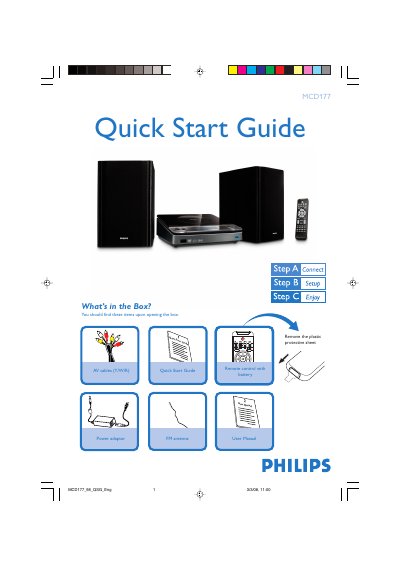
Philips MCD177 DVD Player Quick Start Guide
This Quick Start Guide walks you through the items included in the Philips MCD177 DVD player package and shows how to connect the unit to a TV, speakers, FM antenna and power source. It explains the use of the remote control, source selection, audio and video cabling, and basic TV setup steps.
The guide also covers setting the clock, configuring audio options, using the FM radio tuner, programming stations, and playing discs or USB mass‑storage devices. Tips for progressive scan, night mode, and subtitle settings are included, with references to the full User Manual for detailed features.
Philips MCD177 specifications
| Supported USB versions | USB 2.0 or USB 1.1 |
|---|---|
| Audio output connection | LINE OUT (L/R) with white/red RCA cables |
| Video output connection | Composite video (yellow) cable |
| FM antenna | Included |
All Philips MCD177 documents by type
Day-to-day operation, settings and troubleshooting. Start here if the product is already set up.
The shortest path to a working setup, usually only a few pages.
Questions answered in these manuals
How can I program radio stations on the MCD177?
Press and hold the PROG button for more than two seconds, then use the ¡/™ keys to step through stations until the desired presets appear.
What connections are needed to play audio through a TV?
Connect the provided audio cable (white/red) from the LINE OUT (L/R) jack to the TV's AUDIO IN jack, or use an external AUX IN cable for TV radio playback.
What power adapter is included with the Philips MCD177?
It includes a certified 24V Philips power adapter, model OH-1065B2402700U-EU.
Can the MCD177 play DivX discs?
Yes, the manual includes instructions for playing DivX discs.
How do I register the Philips MCD177?
Visit the registration page at www.philips.com/welcome and follow the on‑screen instructions.
How do I connect the speakers to the DVD Micro Theater?
Connect the left speaker to the “L” terminal and the right speaker to the “R” terminal, matching red (+) and black (‑) wires as shown in the manual.