
Key facts
- Brand
- Philips
- Model
- MCD728
- Documents
- 7
- Languages
- ZH · EN
- Last added
- 2012-03-27
Start here
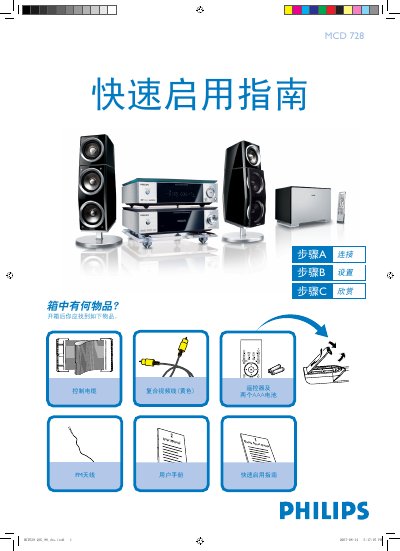
Philips MCD728 Quick Start Guide
This guide introduces the Philips MCD728 DVD player. It lists the items included in the box—remote control, two AAA batteries, FM antenna cable, and a yellow composite video cable—and shows how to connect the player to a TV, speakers, and power source.
The document then explains basic setup steps such as setting the clock, configuring DVD menu options, picture and audio settings, and how to play a disc or program radio stations. For detailed features, the user manual should be consulted. This manual is written in Chinese.
Philips MCD728 specifications
| Audio System | 2.1 system, 400 W RMS |
|---|---|
| Supported Audio Formats | WMA‑CD, MP3‑CD, CD, CD‑R, CD‑RW |
| Power Supply | 110‑240 V, 50/60 Hz |
| Device Dimensions | 240 × 160 × 230 mm |
| Weight (incl. packaging) | 20 kg |
| Audio Output Interfaces | Digital audio, optical audio, FM antenna |
All Philips MCD728 documents by type
Day-to-day operation, settings and troubleshooting. Start here if the product is already set up.
The shortest path to a working setup, usually only a few pages.
Questions answered in these manuals
What items are included in the MCD728 box?
The box contains a remote control, two AAA batteries, an FM antenna cable, and a yellow composite video cable.
How do you set the clock on the MCD728?
In standby mode, hold the CLOCK button on the remote; the hour digits flash, then adjust using the volume knob or remote, repeat for minutes, and press CLOCK again to confirm.
What is the power output of the Philips MCD 728?
The device delivers a maximum audio output of 400 W RMS.
What are the dimensions and weight of the Philips MCD 728?
The device measures 240 × 160 × 230 mm and weighs about 20 kg including packaging.
How do I replace the fuse in the mains plug?
Remove the fuse cover, take out the old fuse, and install a BS1362 3 Amp approved fuse, then replace the cover.
How can I change the on‑screen language of the system?
Open the System Menu, go to the OSD Language option, and select the desired language.