
Key facts
- Brand
- TP-Link
- Model
- TL-SG1005D
- Category
- Network Switches
- Industry
- Computers
- Documents
- 3
- Languages
- ZH · EN
- Last added
- 2012-05-08
Start here
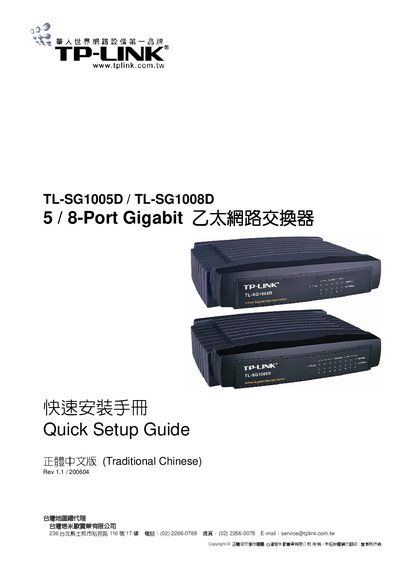
TP-Link TL-SG1005D / TL-SG1008D 5/8-Port Gigabit Switch Quick Setup Guide
This guide provides a brief overview of the TL‑SG1005D and TL‑SG1008D Gigabit Ethernet switches, listing the items included in the package such as the switch unit, AC power adapter, quick‑setup manual, mounting bracket, and warranty card. It also describes the front and rear panel features, including LED indicators for power and link/activity.
Installation steps are outlined: place the switch on a stable surface, connect the power adapter, and ensure adequate ventilation. After powering on, the device automatically initializes, with the LEDs indicating power status and link speed. If the LEDs do not behave as described, the guide advises checking the power connection and contacting technical support. This manual is written in Chinese.
TP-Link TL-SG1005D specifications
| Number of Ports | 5/8 |
|---|---|
| Data Transfer Rates | Gigabit Ethernet: 2000Mbps (Full Duplex) |
| Power Supply Output | AC 9V~ 1.2A |
| Dimensions (W × D × H) | 7.3 × 5.7 × 1.7 in (186 × 146 × 44 mm) |
| Operating Temperature | 0 °C ~ 40 °C |
| Operating Humidity | 10 % ~ 90 % non‑condensing |
| LED Indicators | Power, Link/Act |
| Transfer Method | Store‑and‑Forward |
Source: TP-Link TL-SG1005D/TL-SG1008D Gigabit Ethernet Switch User Guide
All TP-Link TL-SG1005D documents by type
Day-to-day operation, settings and troubleshooting. Start here if the product is already set up.
The shortest path to a working setup, usually only a few pages.
Questions answered in these manuals
How do I install the TL‑SG1005D/TL‑SG1008D switch?
Connect the supplied AC power adapter, place the switch on a flat surface or mount it on a wall, ensure adequate ventilation, and verify that the Power LED lights up.
From: TP-Link TL-SG1005D/TL-SG1008D Gigabit Ethernet Switch User Guide
What do the LED indicators show?
The Power LED indicates that the switch is receiving power, while the Link/Act LEDs show link status and activity for each 10/100/1000 Mbps port.
From: TP-Link TL-SG1005D/TL-SG1008D Gigabit Ethernet Switch User Guide
What should I do if the Power LED is not lit?
Check that the AC power cord is properly connected to the switch and verify that the power source is turned on.
From: TP-LINK TL-SG1005D/TL-SG1008D 5/8-Port Gigabit Desktop Switch User Guide
How many ports does the TL‑SG1005D have?
The TL‑SG1005D model provides five RJ45 ports.
From: TP-LINK TL-SG1005D/TL-SG1008D 5/8-Port Gigabit Desktop Switch User Guide
What does the red LED indicate?
The red LED lights up when the switch is receiving normal power; it stays dark if the power is not connected.
From: TP-Link TL-SG1005D / TL-SG1008D 5/8-Port Gigabit Switch Quick Setup Guide
How many Ethernet ports are on each model?
The TL‑SG1005D has five Ethernet ports, while the TL‑SG1008D has eight ports.
From: TP-Link TL-SG1005D / TL-SG1008D 5/8-Port Gigabit Switch Quick Setup Guide