
Key facts
- Brand
- TP-Link
- Model
- TL-WR2543N
- Documents
- 2
- Languages
- ZH
- Last added
- 2012-03-20
Start here
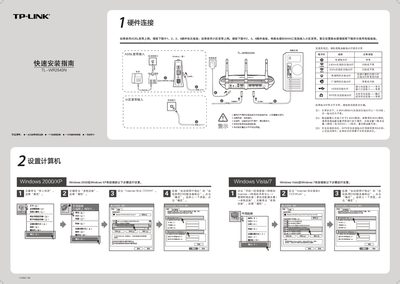
TP-Link TL-WR2543N Quick Installation Guide
The guide starts with hardware connections, explaining how to attach the power adapter, WAN port, and LAN ports, and describes the meaning of each LED indicator (power, 2.4 GHz, 5 GHz, LAN, WAN, WPS).\n\nIt then walks through the initial setup: accessing the router’s web interface at 192.168.1.1, logging in with the default admin credentials, selecting the internet connection type, configuring wireless parameters (SSID, password, band), and provides troubleshooting steps for common issues such as login problems, wireless connectivity, and resetting the device to factory defaults. This manual is written in Chinese.
Read onlineTP-Link TL-WR2543N specifications
| Default wireless frequency | 2.4 GHz |
|---|---|
| Default login username | admin |
| Default login password | admin |
All TP-Link TL-WR2543N documents by type
Day-to-day operation, settings and troubleshooting. Start here if the product is already set up.
The shortest path to a working setup, usually only a few pages.
Questions answered in these manuals
How do I reset the TL‑WR2543N to factory defaults?
Press the reset button (marked RESET) on the back panel for about 5 seconds until the SYS LED flashes three times, then release; the router will be restored to factory settings.
Why can’t my laptop connect to the wireless network?
Check that the SSID matches the router’s SSID, verify the password, ensure the wireless signal is strong, and confirm that the router’s encryption settings match the client’s. If needed, reset the router and configure it again.
What does the WPS indicator light mean?
A slow‑blinking WPS light indicates that a secure WPS connection is in progress, lasting about two minutes.
From: TP-Link TL-WR2543N Wireless Router Configuration Manual
How many LAN ports does the TL‑WR2543N have?
The router provides four LAN ports, each supporting 10/100/1000 Mbps auto‑negotiation.
From: TP-Link TL-WR2543N Wireless Router Configuration Manual