
Key facts
Start here
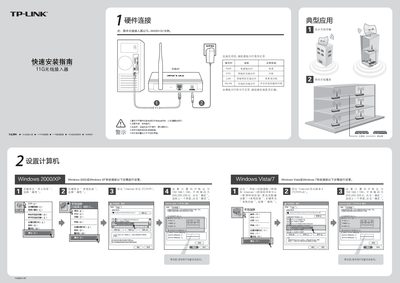
TP-Link TL-WA501G+ Quick Installation Guide
This guide provides step‑by‑step instructions for installing the TL‑WA501G+ wireless access point. It covers hardware connections, indicator LED status, and initial network configuration for Windows systems.
Additional sections explain POE adapter usage, available operating modes (Access Point, Client, Repeater, Bridge, etc.), and troubleshooting tips such as resetting the device and resolving wireless connection issues. This manual is written in Chinese.
TP-Link 11G specifications
| TL-WA501G+ POE Output | 9VDC / 0.6A (up to 40 m) |
|---|---|
| TL-WA701N POE Output | 9VDC / 1.0A (up to 40 m) |
| TL-WAS01N POE Output | 12VDC / 0.5A (up to 60 m) |
All TP-Link 11G documents by type
The shortest path to a working setup, usually only a few pages.
Mounting, wiring and first power-up. Read it before the hardware goes in.
Questions answered in these manuals
How do I reset the AP hardware to factory defaults?
Power the device, press and hold the RESET button on the back for 5‑10 seconds, then release.
Why can't my computer connect to the AP wirelessly?
Check that the computer’s SSID and encryption settings match those configured on the AP.
How do I install the driver for the TP‑Link 11G wireless card?
Insert the supplied CD, open the folder, double‑click Setup.exe and follow the wizard, choosing the recommended installation type and path.
How can I verify that the wireless card was installed successfully?
After reboot, open Device Manager from My Computer → Properties and look for the new network adapter entry; its presence indicates a successful installation.