
Key facts
Start here
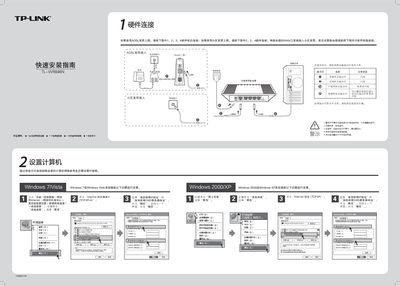
TP-Link TL-WR846N Router Quick Installation Guide
This guide explains how to connect the TL‑WR846N router to your broadband service, set up the WAN port, and verify that the router’s indicator lights are functioning correctly. It also covers the initial hardware connections for ADSL or cable broadband and the required power and placement considerations.
After the hardware is linked, the guide walks you through accessing the router’s web interface at 192.168.1.1, logging in with the default admin credentials, configuring WAN (PPPoE, DHCP, static IP) and wireless settings (SSID, WPA/WPA2‑PSK), and provides troubleshooting tips for common connection problems. This manual is written in Chinese.
TP-Link TL-WR846N specifications
| Default IP address | 192.168.1.1 |
|---|---|
| Default username | admin |
| Default password | admin |
| Wireless security options | WPA‑PSK / WPA2‑PSK |
All TP-Link TL-WR846N documents by type
Day-to-day operation, settings and troubleshooting. Start here if the product is already set up.
The shortest path to a working setup, usually only a few pages.
Questions answered in these manuals
How do I reset the router to factory settings?
Press and hold the QSS/RESET button for about 5 seconds; the router will restart and return to factory defaults.
What should I do if the router cannot obtain an IP address?
Check that all cables are correctly connected, verify the WAN settings, and restart the router or the connected computer.