
Key facts
- Brand
- Philips
- Model
- SL400i
- Category
- Other Electronics
- Documents
- 2
- Languages
- EN
- Last added
- 2012-03-28
Start here
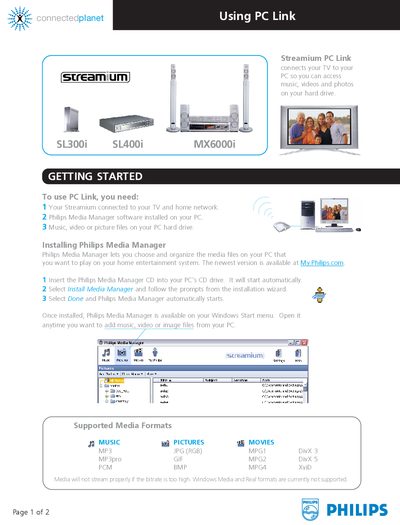
Philips Streamium PC Link User Manual for SL300i, SL400i, MX6000i
The PC Link manual explains how to connect a Philips Streamium device to a PC so you can stream music, photos, and videos stored on the computer. It covers required hardware, software installation, and basic navigation using the remote control.
The guide walks you through installing Philips Media Manager, selecting supported media formats, using the PC Link button on the remote, and adding or removing media files from the PC. It also details remote‑control functions for browsing photos, movies, and music on your TV screen.
Philips SL400i specifications
| Supported audio format | MP3, MP3pro |
|---|---|
| Supported picture format | JPG (RGB), GIF, BMP |
| Supported video format | MPG1 DivX, MPG2 DivX, MPG4 XviD |
| Bitrate limitation | Media will not stream properly if the bitrate is too high |
Source: Philips Streamium PC Link User Manual for SL300i, SL400i, MX6000i
All Philips SL400i documents by type
Day-to-day operation, settings and troubleshooting. Start here if the product is already set up.
Questions answered in these manuals
Which media formats are supported by PC Link?
PC Link supports MP3 and MP3pro audio, JPG (RGB), GIF and BMP pictures, and video formats MPG1 DivX, MPG2 DivX and MPG4 XviD; Windows Media and Real formats are not supported.
From: Philips Streamium PC Link User Manual for SL300i, SL400i, MX6000i
How do I start PC Link on my TV?
Turn on the TV, press the PC Link button on the remote, and a blue screen should appear; if not, select AUX or SOURCE on the TV remote.
From: Philips Streamium PC Link User Manual for SL300i, SL400i, MX6000i