
Key facts
Start here
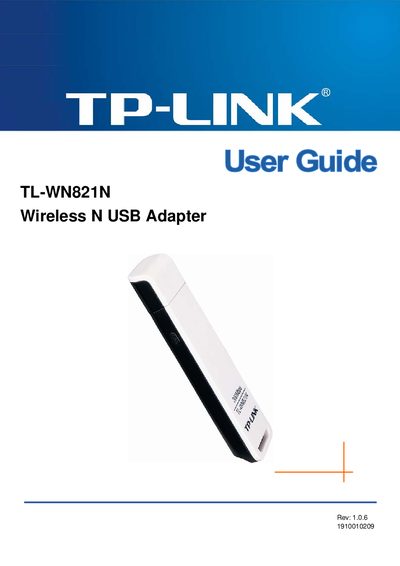
TP-Link TL-WN821N Wireless N USB Adapter User Guide
This guide covers everything you need to get the TL-WN821N adapter up and running, including the package contents, hardware and software installation steps, and an overview of the device’s features. It also explains how to install the driver, use the TP‑Link Wireless N Client Utility, and verify the adapter’s operation.
Further sections describe configuring wireless profiles, using PIN or WPS methods, troubleshooting common issues, and a glossary of wireless networking terms. Regulatory information such as FCC Class B compliance and EU restrictions is also included.
TP-Link TL-WN821N specifications
| Wireless transmission rate | 300 Mbps |
|---|---|
| Supported standards | IEEE 802.11n / 802.11g / 802.11b |
| Frequency range | 2.4‑2.4835 GHz |
| Antenna type | Omni‑directional, internal |
| Operating temperature | 0 °C ~ 40 °C (32 °F ~ 104 °F) |
| Dimensions | 3.4 × 1.0 × 0.5 in |
All TP-Link TL-WN821N documents by type
Day-to-day operation, settings and troubleshooting. Start here if the product is already set up.
Disassembly, diagnostics and part numbers, for repair.
Mounting, wiring and first power-up. Read it before the hardware goes in.
Questions answered in these manuals
What wireless standards does the TL‑WN821N support?
It supports IEEE 802.11n, IEEE 802.11g, and IEEE 802.11b standards.
Which operating systems are compatible with the TL‑WN821N?
The adapter works with Windows 7, Vista, XP, and 2000.
What FCC class does the TL‑WN821N belong to?
The device is classified as a Class B digital device under FCC rules.
Can the TL‑WN821N be used with handheld PDAs?
No, the adapter cannot be used with handheld PDAs (personal digital assistants).
How do I install the TL‑WN821N hardware?
Power off the computer, then insert the PCI/PCI‑E card into the appropriate slot, making sure it is oriented correctly.
From: TP-LINK 11N Wireless Network Card Installation Guide(1)
What should I do if the installer shows a missing digital signature?
When the prompt appears, choose “Continue” (仍然继续) to complete the installation.
From: TP-LINK 11N Wireless Network Card Installation Guide(1)