
Key facts
- Brand
- D-Link
- Model
- DAP-1650
- Category
- Wireless connection
- Industry
- Computers
- Documents
- 2
- Languages
- EN
- Last added
- 2026-11-16
Start here
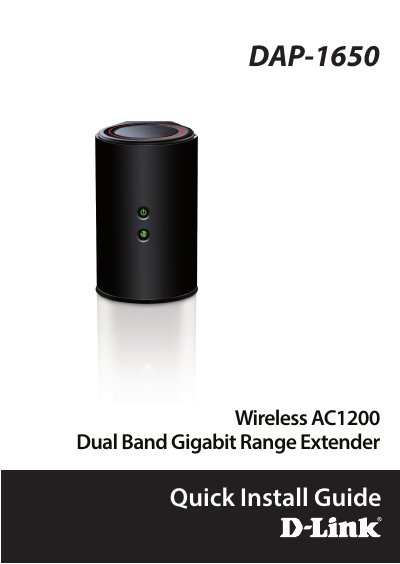
D-Link DAP-1650 Wireless AC1200 Dual Band Gigabit Range Extender Quick Install Guide
This document is a Quick Install Guide for the D-Link DAP-1650 Wireless AC1200 Dual Band Gigabit Range Extender. It provides step-by-step instructions for connecting the device to a wireless router using WPS or a web browser, and for connecting wireless devices to the extender. The guide also lists system requirements and package contents.
Read onlineD-Link DAP-1650 specifications
| Power Adapter | 12V / 2A |
|---|---|
| Ethernet Cable Type | CAT5 UTP |
| Default IP Address | http://dlinkap.local or http://192.168.0.50 |
| Default Username | Admin |
Source: D-Link DAP-1650 Wireless AC1200 Dual Band Gigabit Range Extender Quick Installation Guide
All D-Link DAP-1650 documents by type
The shortest path to a working setup, usually only a few pages.
Questions answered in these manuals
How do I connect the DAP-1650 to my router using WPS?
Plug in the DAP-1650 and wait until the Power LED is solid green, then press the WPS button on your wireless router, followed by the WPS button on the DAP-1650 within one minute.
From: D-Link DAP-1650 Wireless AC1200 Dual Band Gigabit Range Extender Quick Install Guide
What is the default login for the DAP-1650 web configuration?
The username is 'Admin' and the password field should be left blank.
From: D-Link DAP-1650 Wireless AC1200 Dual Band Gigabit Range Extender Quick Install Guide
How do I reset the DAP-1650 to factory default settings?
Ensure the range extender is powered on, then press and hold the reset button on the rear of the device for 5 seconds.
From: D-Link DAP-1650 Wireless AC1200 Dual Band Gigabit Range Extender Quick Installation Guide
What are the usage modes available for the DAP-1650?
You can select to use the device in AP, BRIDGE, or REPEATER mode by using the web interface.
From: D-Link DAP-1650 Wireless AC1200 Dual Band Gigabit Range Extender Quick Installation Guide