
Key facts
Start here
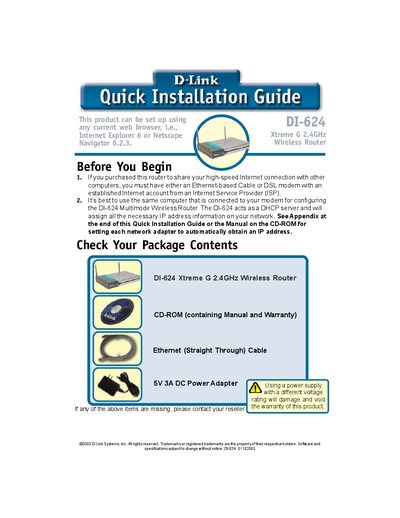
D-Link DI-624 Wireless Router Quick Installation Guide
This guide walks you through the contents of the DI-624 package, including the router, CD‑ROM, Ethernet cable and 5V 3A DC power adapter, and shows how to connect power, WAN and LAN ports. It explains LED indicators for power, WAN, LAN and wireless status, and describes how to reset the router to factory defaults.
The document then details the web‑based Setup Wizard, covering login (admin/blank password), time‑zone selection, Internet connection types (Dynamic IP, Static IP, PPPoE), MAC address cloning, and wireless configuration (default SSID and channel). Technical support contact information is provided at the end.
D-Link DI-624 specifications
| Wireless data rate (max) | 108 Mbps |
|---|---|
| Wireless data rate (backward compatible) | 11 Mbps |
| Frequency band | 2.4 GHz |
| Ethernet ports | 4 LAN 10/100 ports, 1 WAN port, Auto MDI/MDIX |
| Power adapter | DC 5V, 3.0A |
All D-Link DI-624 documents by type
Day-to-day operation, settings and troubleshooting. Start here if the product is already set up.
The shortest path to a working setup, usually only a few pages.
Questions answered in these manuals
How do I reset the router to factory defaults?
Press the Reset button to restore the router to its original factory default settings.
What do the LED indicators mean?
Solid lights indicate a proper connection, while blinking lights show data transmission activity.
How can I reset the router to factory defaults?
Press the Reset button on the router; this restores all settings to the original factory defaults.
From: D-Link DI-624 Wireless Router Quick Installation Guide
How do I reset the DI-624 router to factory defaults?
Press the Reset button on the router; this restores the unit to its original factory default settings.