
Key facts
Start here
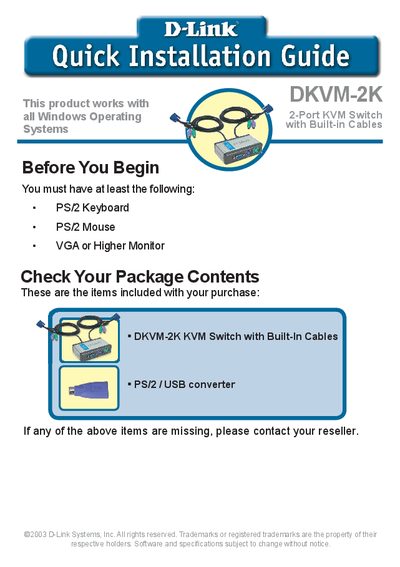
D-Link DKVM-2K 2-Port KVM Switch User Manual
The DKVM-2K is a 2‑Port KVM Switch with built‑in PS/2 keyboard, mouse and VGA cables, designed to work with all Windows operating systems. The package includes the DKVM-2K unit, a PS/2/USB converter, and the built‑in cables.
The manual covers installation steps, switching methods using the front‑panel Select button or Hot Key sequences, troubleshooting tips for keyboard, mouse and video issues, and contact information for regional technical support.
D-Link DKVM-2K specifications
| Ports | 2‑Port KVM Switch |
|---|---|
| Cables | Built‑in PS/2 and VGA cables |
| Supported OS | All Windows Operating Systems |
| Keyboard interface | PS/2 Keyboard |
| Mouse interface | PS/2 Mouse |
All D-Link DKVM-2K documents by type
Day-to-day operation, settings and troubleshooting. Start here if the product is already set up.
Questions answered in these manuals
How do I switch between the two connected computers?
Use the front‑panel Select button or press Scroll Lock twice to enter Hot Key mode, then press Scroll Lock + 1 for PC 1 or Scroll Lock + 2 for PC 2.
How do I activate Hot Key switching mode?
Press the Scroll Lock key twice; a beep confirms that Hot Key mode is activated.
How do I switch between the two computers?
Press the front‑panel Select button or use Hot‑Key mode: press Scroll Lock twice, then Scroll Lock + 1 for PC 1 or Scroll Lock + 2 for PC 2.
How do I activate Auto Scan Mode?
Enter Hot‑Key mode (Scroll Lock twice) and then press Scroll Lock + S to start Auto Scan, which switches computers every 10 seconds.