
Key facts
Start here
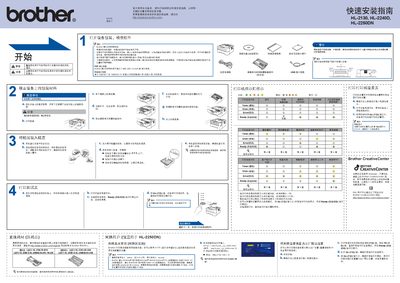
Brother HL-2130/HL-2240D/HL-2250DN Quick Installation Guide
This guide provides step‑by‑step instructions for unpacking, setting up power, connecting USB or network cables, and installing the printer driver. It also covers safety warnings, required accessories, and basic troubleshooting.
The document includes details on replacing consumables such as toner and drum units, configuring network settings, and resetting the printer to factory defaults. Links to Brother Solutions Center for driver downloads are also provided. This manual is written in Chinese.
Brother HL-2240D specifications
| Maximum USB cable length | 2 m |
|---|---|
| Network cable type | Category 5 or higher twisted‑pair |
| Power plug | Standard grounded plug supplied with the printer |
Source: Brother HL-2130/HL-2240D/HL-2250DN Quick Installation Guide
All Brother HL-2240D documents by type
Day-to-day operation, settings and troubleshooting. Start here if the product is already set up.
The shortest path to a working setup, usually only a few pages.
Questions answered in these manuals
How can I enable automatic duplex printing?
Automatic duplex printing is supported on the HL‑2240D and HL‑2250DN models and is described in the manual under the auto duplex printing section.
From: Brother HL-2130 HL-2240D HL-2250DN Laser Printer User Manual
What is the recommended USB cable length?
Use a USB 2.0 (A/B) cable no longer than 2 meters.
From: Brother HL-2130/HL-2240D/HL-2250DN Quick Installation Guide
How can I reset the network settings to factory defaults?
Press the Go (Start) button six times until all indicator lights flash.
From: Brother HL-2130/HL-2240D/HL-2250DN Quick Installation Guide