
Key facts
Start here
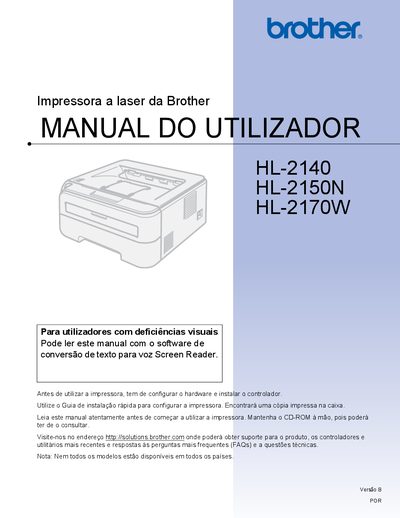
Brother HL-2140 / HL-2150N / HL-2170W User Manual
This manual covers everything you need to know to install and use the Brother HL-2140, HL-2150N, and HL-2170W laser printers. It includes hardware setup, driver installation, and basic printing functions such as duplex, envelopes, and label printing.
Safety guidelines, routine maintenance, consumable replacement, and detailed troubleshooting steps are provided to keep the printers running reliably. The document also lists technical specifications, regulatory information, and contact details for support. This manual is written in Portuguese.
Brother HL-2150N specifications
| Print speed | Up to 22 ppm |
|---|---|
| Print resolution | 1200 dpi |
| Standard paper tray capacity | 250 sheets |
| Dimensions (with carton) | 475 × 454 × 360 mm |
| Weight (with carton) | 84 kg |
| Printing power consumption | 480 W |
| Standby power consumption | 80 W |
| Sound pressure (printing) | 51 dB(A) |
All Brother HL-2150N documents by type
Day-to-day operation, settings and troubleshooting. Start here if the product is already set up.
- Brother HL-2150N Mono Laser Printer User Manual 4 p
- brother HL-2150N HL-2170W NETWORK USER S GUIDE
- Brother HL-2140 / HL-2150N / HL-2170W User Manual 139 p
- Brother HL-2140 / HL-2150N / HL-2170W User Manual 138 p
- Brother HL-2140 / HL-2150N / HL-2170W Laser Printer User Manual 128 p
- Brother HL-2140 HL-2150N HL-2170W Laser Printer User Manual 132 p
Questions answered in these manuals
What is the print speed of the HL-2150N?
The printer can print up to 22 pages per minute.
How many sheets does the standard paper tray hold?
The standard paper tray accommodates 250 sheets.
What safety precautions must I take before servicing the printer?
Make sure the printer is disconnected from the mains, avoid touching the plug with wet hands, and keep away from high‑voltage components.
Where can I get support and driver updates for these printers?
Visit the Brother support site at http://solutions.brother.com for drivers, utilities, FAQs, and technical assistance.
What safety steps must I take before cleaning the inside of the printer?
Turn off the power switch and unplug the printer before cleaning; avoid touching hot internal parts.
What must I do before using the printer?
Set up the hardware and install the printer driver before you can use the printer.