
Key facts
Start here
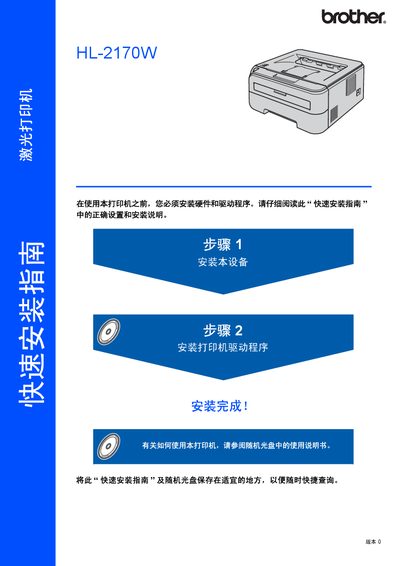
Brother HL-2170W Laser Printer Quick Start Guide
The guide introduces safety precautions for the HL-2170W laser printer, including warnings about high‑voltage components, hot parts, and proper cleaning methods. It also explains regulatory compliance such as laser class and electromagnetic emission standards.
Installation steps cover loading paper, installing the toner cartridge and drum unit, connecting via USB, Ethernet or Wi‑Fi, and installing the printer driver on Windows or Mac. The document describes the function of indicator lights and provides basic troubleshooting tips. This manual is written in Chinese.
Brother HL-2170W specifications
| Laser Output Power | 10 mW |
|---|---|
| Laser Wavelength | 780‑800 nm |
| Laser Class | Class 3B |
Source: Brother HL-2140 / HL-2150N / HL-2170W Laser Printer User Manual
All Brother HL-2170W documents by type
Day-to-day operation, settings and troubleshooting. Start here if the product is already set up.
The shortest path to a working setup, usually only a few pages.
Questions answered in these manuals
What safety precautions must I take before servicing the printer?
Make sure the printer is disconnected from the mains, avoid touching the plug with wet hands, and keep away from high‑voltage components.
Where can I get support and driver updates for these printers?
Visit the Brother support site at http://solutions.brother.com for drivers, utilities, FAQs, and technical assistance.
What safety steps must I take before cleaning the inside of the printer?
Turn off the power switch and unplug the printer before cleaning; avoid touching hot internal parts.
What must I do before using the printer?
Set up the hardware and install the printer driver before you can use the printer.
How can I install the network driver for the HL‑2150N or HL‑2170W?
Use the network driver provided on the installation CD; it is only applicable to the HL‑2150N and HL‑2170W models.
From: Brother HL-2140 / HL-2150N / HL-2170W Laser Printer User Manual
How do I install the printer driver?
Run the driver installation program after connecting the printer with the appropriate USB, Ethernet or Wi‑Fi cable, following the steps shown in the "安装打印机驱动程序" section.