
Key facts
Start here
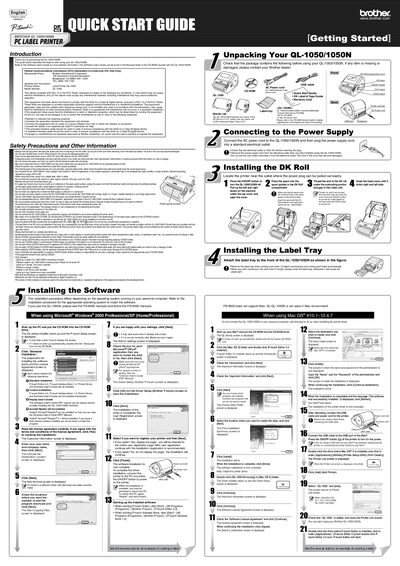
Brother QL-1050/1050N PC Label Printer Quick Start Guide
This document serves as a Quick Start Guide for the Brother QL-1050 and QL-1050N PC Label Printers. It provides brief instructions to help users start using the device immediately, including unpacking the starter rolls and installing the necessary software on a Windows PC.
Read onlineBrother QL-1050N specifications
| Printing method | Direct thermal printing via thermal head |
|---|---|
| Print head resolution | 300 dpi (720 dot) for QL‑500/560; 300 dpi (1296 dot) for QL‑650TD |
| Dimensions (QL‑500/560) | 146 mm (W) × 196 mm (D) × 152 mm (H) |
| Weight (QL‑500/560) | Approx. 1.3 kg (without DK rolls) |
| Cutter type | Automatic cutter on QL‑560; manual cutter on QL‑500; automatic cutter on QL‑650TD/1050/1050N |
Source: Brother QL-500/QL-560/QL-650TD/QL-1050/QL-1050N Label Printer User Manual
All Brother QL-1050N documents by type
Day-to-day operation, settings and troubleshooting. Start here if the product is already set up.
The shortest path to a working setup, usually only a few pages.
Questions answered in these manuals
What is included in the starter package?
The package includes an AC Power cord, a Starter roll of DK Die-cut 4" X 6" Labels, and a Starter roll of DK Continuous Paper Tape 2-3/7".
From: Brother QL-1050/1050N PC Label Printer Quick Start Guide
What does a flashing green LED indicate?
A flashing green LED indicates that the QL-1050/1050N is receiving data and the user should not power off the device.
From: Brother QL-1050/1050N PC Label Printer Quick Start Guide
How do I uninstall the Brother QL printer driver on Windows?
Turn off the printer, open Control Panel → Printers and Faxes, select the Brother QL model, and choose File → Delete to remove the driver.
From: Brother QL-500/QL-560/QL-650TD/QL-1050/QL-1050N Label Printer User Manual