
Key facts
Start here
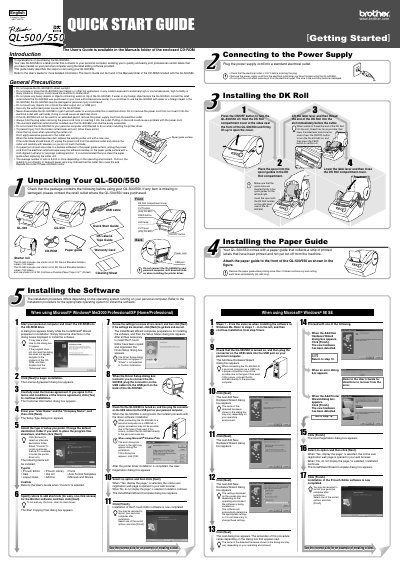
Brother QL-500/550 Label Printer Quick Start Guide
This document serves as a Quick Start Guide for the Brother QL-500/550 label printer. It outlines the essential steps to get the device up and running, including unpacking, installing the paper guide and DK Roll, and connecting the power supply. The guide also details the software installation process for Microsoft Windows operating systems.
Read onlineBrother QL-500 specifications
| Printing method | Direct thermal printing via thermal head |
|---|---|
| Print head resolution | 300 dpi (720 dot) for QL‑500/560; 300 dpi (1296 dot) for QL‑650TD |
| Dimensions (QL‑500/560) | 146 mm (W) × 196 mm (D) × 152 mm (H) |
| Weight (QL‑500/560) | Approx. 1.3 kg (without DK rolls) |
| Cutter type | Automatic cutter on QL‑560; manual cutter on QL‑500; automatic cutter on QL‑650TD/1050/1050N |
Source: Brother QL-500/QL-560/QL-650TD/QL-1050/QL-1050N Label Printer User Manual
All Brother QL-500 documents by type
Day-to-day operation, settings and troubleshooting. Start here if the product is already set up.
The shortest path to a working setup, usually only a few pages.
Questions answered in these manuals
What electrical voltage must be checked before plugging in the QL-500/550?
You must check that the electrical outlet is 120 V before inserting the plug.
How many labels are included in the starter roll for the QL-500?
The QL-500 includes one starter roll containing 100 labels.
How do I uninstall the Brother QL printer driver on Windows?
Turn off the printer, open Control Panel → Printers and Faxes, select the Brother QL model, and choose File → Delete to remove the driver.
From: Brother QL-500/QL-560/QL-650TD/QL-1050/QL-1050N Label Printer User Manual
What should be checked when unpacking the QL-500/550?
Verify that the package contains all listed items before using the printer.
How do I install the software for the QL-500/550?
Run the installation program from the supplied CD-ROM and follow the on‑screen instructions.
What type of labels can be used with the QL‑500/550?
Only Brother DK Die‑cut Labels or Brother DK Continuous Tapes may be used with the printer.