
Key facts
Start here
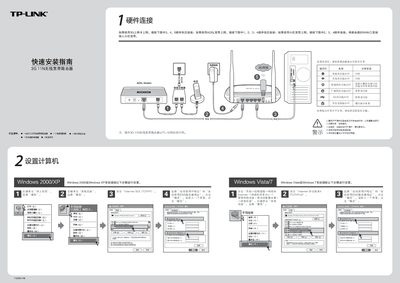
TP-Link TL-MR3420 3G/11N Wireless Router Quick Installation Guide
This guide walks you through hardware connections, power setup, and indicator‑light checks for the TL‑MR3420 router. It covers three broadband options—3G, ADSL, and cable—showing the required sequence of cable connections.
After wiring, the document explains how to access the router’s web interface (192.168.1.1), run the setup wizard, configure WAN mode, and secure the wireless network with WPA‑PSK. Troubleshooting tips for common Wi‑Fi issues and router reset procedures are also provided. This manual is written in Chinese.
TP-Link TL-MR3420 specifications
| WAN Port | One 10/100M Auto‑Negotiation RJ45 port |
|---|---|
| LAN Ports | Four 10/100M Auto‑Negotiation RJ45 ports (Auto MDI/MDIX) |
| Wireless Frequency Band | 2.4 ~ 2.4835 GHz |
| Maximum Data Rate (802.11n) | Up to 300 Mbps |
| Antenna Gain | 3 dBi × 2 |
| Operating Temperature | 0 °C ~ 40 °C (32 °F ~ 104 °F) |
All TP-Link TL-MR3420 documents by type
Day-to-day operation, settings and troubleshooting. Start here if the product is already set up.
The shortest path to a working setup, usually only a few pages.
Questions answered in these manuals
What should I do if the router causes harmful radio interference?
Reorient or relocate the receiving antenna, increase the separation between the equipment and receiver, or connect the equipment to a different outlet.
What wireless security methods does the TL‑MR3420 support?
It supports WEP, WPA, WPA2, WPA‑PSK, WPA2‑PSK authentication, and TKIP/AES encryption.
Where can I view my computer's MAC address in the router interface?
Open the Network Connection Details page and look for the "Physical Address" field, which shows the MAC address (e.g., 00‑0A‑66‑EB‑54‑37).
From: TP-Link TL-MR3420 3G 11N Wireless Broadband Router Detailed Configuration Guide