
Key facts
- Brand
- TP-Link
- Model
- EAP225
- Category
- Other network devices
- Documents
- 3
- Languages
- EN
- Last added
- 2023-11-09
Start here
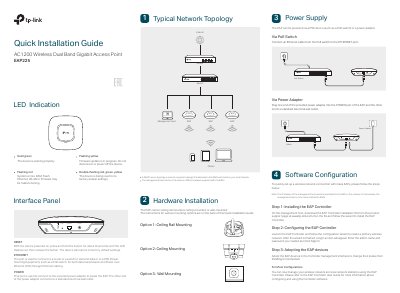
TP-Link EAP225 AC1200 Wireless Dual Band Gigabit Access Point Quick Installation Guide
This guide covers powering, mounting, and adopting the TP-Link EAP225 access point with the EAP Controller. It describes LED indications, interface ports, and ceiling rail, ceiling, and wall mounting options.
Setup requires a DHCP server and a management host reachable by the EAPs. The EAP can be powered by a PoE switch or the provided power adapter, and the guide lists the mounting hardware and step-by-step installation procedure.
TP-Link EAP225 specifications
| Product | AC1200 Wireless Dual Band Gigabit Access Point |
|---|---|
| Wall mounting hole spacing | 98.6 mm |
| Wall mounting anchors | M3×28 plastic wall anchors (Qty.3) |
Source: TP-Link EAP225 AC1200 Wireless Dual Band Gigabit Access Point Quick Installation Guide
All TP-Link EAP225 documents by type
Day-to-day operation, settings and troubleshooting. Start here if the product is already set up.
The shortest path to a working setup, usually only a few pages.
Mounting, wiring and first power-up. Read it before the hardware goes in.
Questions answered in these manuals
How can the EAP be managed?
It can be managed via EAP Controller or via the web page of the EAP.
Can EAP320 and EAP330 be logged in via domain name?
No, EAP320 and EAP330 are not currently available for login via domain name.
How can the EAP225 be powered?
It can be powered via a PSE device such as a PoE switch or a power adapter.
From: TP-Link EAP225 AC1200 Wireless Dual Band Gigabit Access Point Quick Installation Guide
How do I reset the EAP225 to factory default settings?
With the device powered on, press and hold the RESET button for about 8 seconds until the LED flashes red, then release it.
From: TP-Link EAP225 AC1200 Wireless Dual Band Gigabit Access Point Quick Installation Guide
What is the default SSID of the EAP225-Outdoor?
The default SSID format is TP-Link_2.4GHz/5GHz_XXXXXX and is printed on the product label.
How do I log in to the EAP device through a web browser?
Enter http://tplinkeap.net in the address bar and use admin for both the username and password.