
Key facts
- Brand
- TP-Link
- Model
- RE450
- Category
- Wireless connection
- Documents
- 2
- Languages
- JA · EN
- Last added
- 2023-11-09
Start here
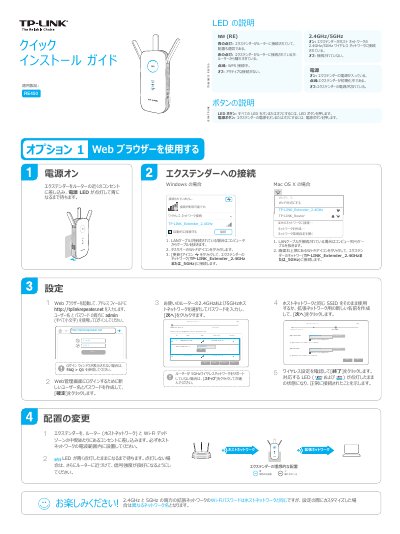
TP-LINK TL-WA850RE Wireless Extender Quick Installation Guide
This guide explains how to set up the TP-LINK RE450 wireless extender. It describes LED and button meanings, connecting through a web browser or WPS, placing the extender for good signal, and using it as a wireless adapter for Ethernet-only devices.
It also covers the TP-LINK Tether app, changing basic extended network settings, restoring factory defaults, and answers common setup questions. This manual is written in Japanese.
All TP-LINK RE450 documents by type
The shortest path to a working setup, usually only a few pages.
Mounting, wiring and first power-up. Read it before the hardware goes in.
Questions answered in these manuals
What should I do if I cannot access the extender's web-based interface?
Make sure the computer is connected to the extended network SSID or to the extender by LAN cable, set the computer to obtain an IP address automatically, and enter http://tplinkrepeater.net correctly.
From: TP-LINK TL-WA850RE Wireless Extender Quick Installation Guide
What if the LED does not stay on after Option 1?
The host network Wi-Fi password may have been entered incorrectly; check it in the web management interface and retry, or reset the extender and set it up again.
From: TP-LINK TL-WA850RE Wireless Extender Quick Installation Guide
What should I do if I cannot access the extender’s web management page?
Make sure your device is connected to the extender’s network rather than the router’s, set the computer to obtain an IP address and DNS server address automatically, verify the entered address, try another browser, or reboot or reset the extender.
What should I do if the LED doesn’t turn solid on after completing setup via the Tether app or web browser?
Check the Wi-Fi passwords, move the extender closer to the router and away from large electrical appliances, disable wireless MAC filtering or access control on the router, try WPS setup, or reset and reconfigure the extender.