
Key facts
- Brand
- Ricoh
- Model
- VM-1
- Category
- Other software
- Industry
- Computers
- Documents
- 3
- Languages
- ZH · EN
- Last added
- 2026-10-01
Start here
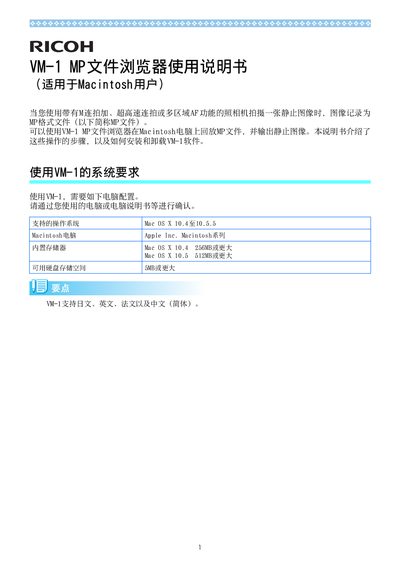
Ricoh VM-1 MP File Browser User Manual
The Ricoh VM-1 MP File Browser allows Macintosh users to playback MP‑format files recorded by cameras with high‑speed burst or multi‑area AF functions, and to extract individual still images. The software supports Mac OS X 10.4‑10.5.5, requires at least 256 MB (10.4) or 512 MB (10.5) of RAM, and needs 5 MB of free disk space.
The manual provides step‑by‑step instructions for downloading the installer from Ricoh’s website, installing the application, uninstalling it, playing back MP files, and saving selected images as separate still files. It also describes how to extract all images at once or one by one, and how to navigate the image numbers within the program. This manual is written in Chinese.
Ricoh VM-1 specifications
| Supported Operating System | Mac OS X 10.4‑10.5.5 |
|---|---|
| Minimum RAM | 256 MB (OS X 10.4) / 512 MB (OS X 10.5) |
| Minimum Disk Space | 5 MB |
All Ricoh VM-1 documents by type
Day-to-day operation, settings and troubleshooting. Start here if the product is already set up.
How to use the product for one specific task, with worked examples.
Questions answered in these manuals
How do I install the VM-1 software on my Mac?
Download the VM-1XX.dmg file from Ricoh’s website, double‑click the DMG, then double‑click the VM-1 Installer.pkg and follow the on‑screen prompts to complete the installation.
What is the typical supply current of the RN5VM1xx C/D series?
The typical supply current is 3.0 pA.
What is the over‑charge detector threshold range?
It ranges from 4.0 V to 4.4 V with a step size of 0.01 V.
How do I install the VM-1 software on a Macintosh?
Download the VM-1XX.dmg file from Ricoh’s website, open it, double‑click the VM-1 Installer.pkg icon, and follow the on‑screen prompts to complete the installation.
How can I uninstall VM-1 from my Mac?
Open the Applications → Utilities → VM-1 Utility folder, double‑click the VM-1 Uninstaller icon, confirm the removal, and enter your administrator password when prompted.