
Key facts
- Brand
- HP
- Model
- LC3040N
- Category
- Television
- Industry
- Computers
- Documents
- 3
- Languages
- EN · ZH
- Last added
- 2012-06-04
Start here
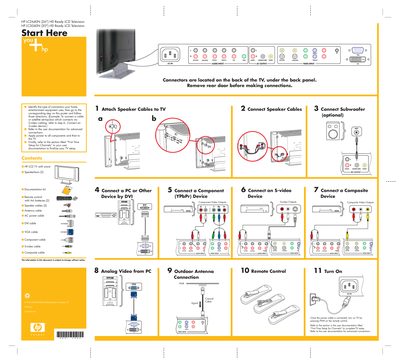
HP LC2640N and LC3040N Quick Setup Poster
This poster provides a visual, step‑by‑step guide for the first‑time installation of HP LC2640N (26") and LC3040N (30") HD Ready LCD televisions. It shows where the rear connectors are located and the order of connections for speakers, subwoofer, and video sources.
Key steps include attaching speaker cables, connecting the subwoofer, selecting the appropriate video input (AV, S‑video, component, DVI, VGA, etc.), and powering the TV before completing channel setup using the full user manual.
HP LC3040N specifications
| Screen Size (LC3040N) | 30" |
|---|---|
| Screen Size (LC2640N) | 26" |
| Limited Warranty Period | 1 year |
Source: HP LC3040N / LC2640N LCD TV Warranty and Support Guide
All HP LC3040N documents by type
Day-to-day operation, settings and troubleshooting. Start here if the product is already set up.
The shortest path to a working setup, usually only a few pages.
Questions answered in these manuals
How can I register my HP TV?
Visit http://register.hp.com to complete a quick online registration.
From: HP LC3040N / LC2640N LCD TV Warranty and Support Guide
What does the pixel policy cover?
HP will replace the TV if it has any bright pixel or six or more dark pixels.
From: HP LC3040N / LC2640N LCD TV Warranty and Support Guide
How do I connect the speaker cables?
Attach the speaker cables to the TV as shown in step 1 of the poster, then connect the other ends to the speakers.
What should I do after connecting all cables?
Connect the power cable, turn on the TV by pressing PWR on the remote, then follow the “First Time Setup for Channels” section in the user documentation.
What is the model of the TV?
HP LC3040N 30" HD Ready LCD TV.
From: HP LC3040N 30" HD Ready LCD TV HP LC2640N 26" HD Ready LCD TV User Guide
What is the TV’s stated receiving mode setting?
The TV can be set to receive channels in different modes.
From: HP LC3040N 30" HD Ready LCD TV HP LC2640N 26" HD Ready LCD TV User Guide