
Key facts
Start here
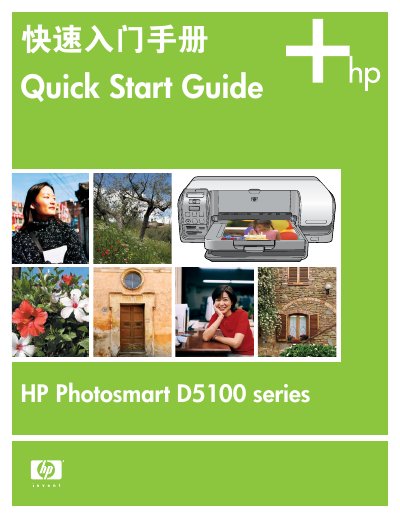
HP Photosmart D5100 series Quick Start Guide
This document is the Quick Start Guide for the HP Photosmart D5100 series printer. It provides step-by-step instructions for initial setup, including unpacking the device, connecting the power cord, and loading plain paper for print head calibration. The guide also details the installation of genuine HP print cartridges and the automatic alignment process that follows. This manual is written in Chinese.
Read onlineHP D5100 series specifications
| Supported Windows operating systems | Windows 98, 2000 Professional, Me, XP Home, XP Professional |
|---|---|
| Processor requirement | Intel® Pentium® II (or equivalent) or higher |
| Minimum RAM | 128 MB |
| Supported photo paper size | 10 × 15 cm (4 × 6 in) |
| USB connectivity | USB 2.0 full‑speed |
All HP D5100 series documents by type
The shortest path to a working setup, usually only a few pages.
Day-to-day operation, settings and troubleshooting. Start here if the product is already set up.
Questions answered in these manuals
When should I connect the USB cable during installation?
You should wait to connect the USB cable until you insert the CD into the computer.
Which Windows operating systems are supported for installing HP Photosmart software?
The software supports Windows 98, Me, 2000 Professional, XP Home, XP Professional, and x64 Edition.
How do I load paper into the HP D5100 Series printer?
Open the main tray and place the paper inside; the main tray is labeled "Load paper here."
What does a flashing red indicator light mean?
A flashing red light (the Attention indicator) signals an error or that user action is required.
How do I insert a memory card into the printer?
Insert the memory card into the memory card and PictBridge camera slot on the printer.
What does a flashing red light on the printer indicate?
A flashing red light means an error has occurred or the printer requires user action.