
Key facts
Start here
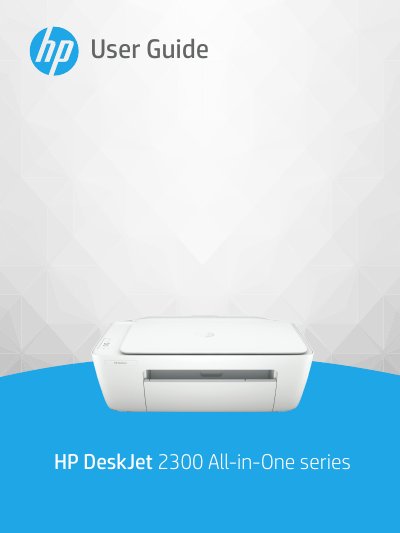
HP DeskJet 2300 All-in-One series User Guide
This document serves as the official user guide for the HP DeskJet 2300 All-in-One series. It provides comprehensive instructions on getting started with the device, including identifying printer parts and understanding control panel features and status lights. The guide details how to load media, manage ink cartridges, and use the HP Smart app for printing and scanning tasks on Windows 10.
Read onlineHP DeskJet 2300 All-in-One series specifications
| Optical Resolution | 1200 x 1200 ppi |
|---|---|
| Color Depth | 24-bit color, 8-bit grayscale |
| Scanner Glass Size | 21.6 x 29.7 cm |
| Input Tray Capacity (Plain Paper) | Up to 60 sheets |
| Output Tray Capacity (Plain Paper) | Up to 25 sheets |
| Recommended Operating Temperature | 15ºC to 30ºC (59ºF to 86ºF) |
All HP DeskJet 2300 All-in-One series documents by type
Day-to-day operation, settings and troubleshooting. Start here if the product is already set up.
Questions answered in these manuals
What does a flashing Power button light indicate?
A flashing Power button light along with other lights indicates a paper jam or that the ink cartridge carriage is stuck.
How many sheets of plain paper can fit in the input tray?
The input tray holds up to 60 sheets of plain paper (80 g/m²).
What happens if the ink cartridge is low?
The printer can continue to print using the remaining ink, but the quality of printed documents might be affected.
How do I exit single-cartridge mode?
To exit single-cartridge mode, insert the missing corresponding ink cartridge.