
TL-WN322G+ quick installation guide, introduces the hardware installation, software installation, and provides warning instructions.
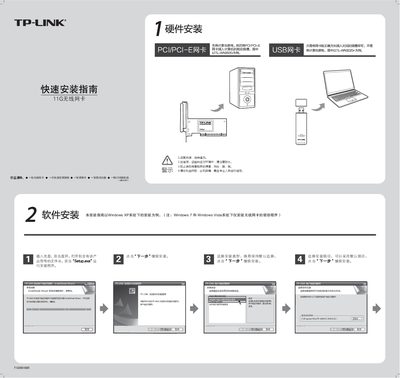
This guide explains how to install the TP‑Link 11G wireless network card, covering hardware placement, driver installation, and initial configuration. It is written for Windows XP, Windows 7 and Windows Vista systems.
The document walks you through inserting the card, running the Setup.exe wizard, handling a possible digital‑signature warning, and verifying the installation via Device Manager. After the driver is installed, it shows how to launch the client application, scan for available SSIDs, and connect to a wireless network. This manual is written in Chinese.
| Supported Operating Systems | Windows XP, Windows 7, Windows Vista |
|---|
Insert the supplied CD, open the folder, double‑click Setup.exe and follow the wizard, choosing the recommended installation type and path.
After reboot, open Device Manager from My Computer → Properties and look for the new network adapter entry; its presence indicates a successful installation.