
Key facts
- Brand
- ATEN
- Model
- CV-131A
- Industry
- Industrial
- Documents
- 2
- Languages
- EN · ZH
- Last added
- 2012-04-12
Start here
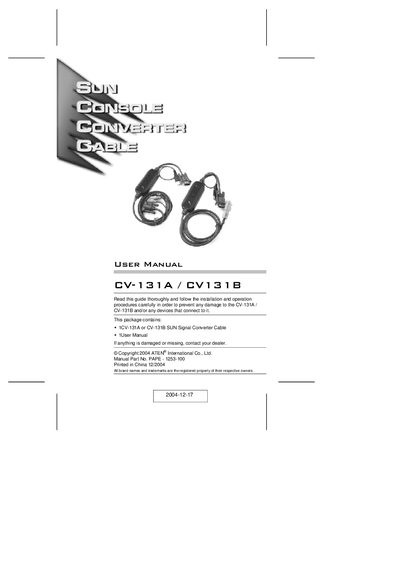
ATEN CV-131A/CV-131B User Manual
The CV-131A and CV-131B are ATEN PS/2‑to‑SUN interface converters that translate PS/2 keyboard and mouse signals to Sun-compatible signals, enabling Sun servers to be integrated into IBM‑compatible KVM installations. The CV-131A works with SPHD‑15 KVM switches, while the CV-131B is designed for standard PS/2‑VGA switches.
This manual covers safety notices, system requirements, step‑by‑step installation, hotkey operation for language selection and USB reset, Sun keyboard emulation, troubleshooting tips, and full technical specifications of the converters.
ATEN CV-131A specifications
| Connector to SPHD‑15 switch (CV-131A) | 1x SPHD‑15 |
|---|---|
| Connector to Sun station | 1x HDB‑15 |
| USB port | 1x USB Type A |
| LED indicator | 1 Power |
| Supported video resolutions | 1152 × 900; 1280 × 1024; 1600 × 1200 |
| Operating temperature | 0 – 50 °C |
| Cable length | 1.8 m |
| Housing dimensions | 10.65 × 4.2 × 2.31 cm |
| Weight | 0.2 kg (CV-131A) / 0.24 kg (CV-131B) |
Source: ATEN CV-131A/CV-131B User Manual
All ATEN CV-131A documents by type
Day-to-day operation, settings and troubleshooting. Start here if the product is already set up.
Questions answered in these manuals
How do I select the keyboard language layout?
Press and hold the Ctrl key, press F12, then press the hotkey for the desired language (3 for American English, 0 for French, 1 for Japanese).
How can I reset the USB connection?
You can either unplug and replug the USB cable or use the USB reset hotkey combination (Ctrl + F12, F5).
How can I change the keyboard language layout?
Press and hold the Qrl key, then press F12 and the corresponding hot‑key (e.g., Ctrl+F12,3 for US English) and finally release the Qrl key; the system must be rebooted after changing the layout.
How do I reset the USB connection?
Use the hot‑key combination Ctrl + F12, then F5S to perform a USB reset.