
Key facts
Start here
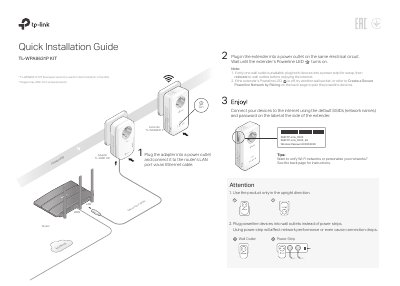
TP-Link TL-WPA8631P Powerline Extender Quick Installation Guide
This guide explains how to install the TP-Link TL-WPA8631P powerline extender with a TL-PA8010P adapter, connect devices to the default SSIDs and password, and pair powerline devices to create a secure network. It also describes methods for copying the router's Wi-Fi settings, including the Wi-Fi button, OneMesh, and the web interface at tplinkplc.net.
The guide includes button functions, the integrated electrical socket, and answers to common questions about factory reset, loss of internet connection, and reconnection after relocation.
TP-Link TL-WPA8631P specifications
| Default 2.4 GHz SSID | TP-Link_XXXX |
|---|---|
| Default 5 GHz SSID | TP-Link_XXXX_5G |
| Web interface address | http://tplinkplc.net |
| Pairing button press time | 1 second |
| Factory reset hold time | At least 5 seconds |
| Integrated electrical socket | Pass-through AC outlet |
Source: TP-Link TL-WPA8631P Powerline Extender Quick Installation Guide
All TP-Link TL-WPA8631P documents by type
The shortest path to a working setup, usually only a few pages.
Day-to-day operation, settings and troubleshooting. Start here if the product is already set up.
Questions answered in these manuals
How do I reset the extender to factory default settings?
With the extender plugged into an electrical outlet, press and hold the Reset button until all LEDs turn off. When the LEDs turn back on, the reset process is complete.
From: TP-Link TL-WPA8631P Powerline Extender Quick Installation Guide
What should I do if the powerline network has no internet connection?
Make sure all powerline adapters and extenders are on the same electrical circuit, the Powerline LEDs are lit on all devices, and all devices are correctly and securely connected. Also check for an internet connection by connecting the computer directly to the modem or router.
From: TP-Link TL-WPA8631P Powerline Extender Quick Installation Guide
How do I reset my extender to factory default settings?
With the extender plugged into an electrical outlet, press and hold the Reset button until all LEDs turn off. When the LEDs turn back on, the reset process is complete.
From: TP-Link TL-WPA8631P KIT Powerline Extender Quick Installation Guide
What should I do if my powerline network has no internet connection?
Make sure all powerline adapters and extenders are on the same electrical circuit and that their Powerline LEDs are lit. Also check that all devices are securely connected and test internet by connecting a computer directly to the modem or router.
From: TP-Link TL-WPA8631P KIT Powerline Extender Quick Installation Guide
How do I reset my extender to factory default settings?
Press and hold the Reset button until all LEDs turn off. When the LEDs turn back on, the reset process is complete.
From: TP-Link TL-WPA8631P Powerline Extender Quick Installation Guide
What should I do if my powerline network has no internet connection?
Ensure all devices are on the same electrical circuit, check that Powerline LEDs are lit, and verify the internet connection by connecting directly to the modem.
From: TP-Link TL-WPA8631P Powerline Extender Quick Installation Guide