
Key facts
- Brand
- HP
- Model
- J4500
- Documents
- 4
- Languages
- EN · ZH
- Last added
- 2023-03-02
Start here
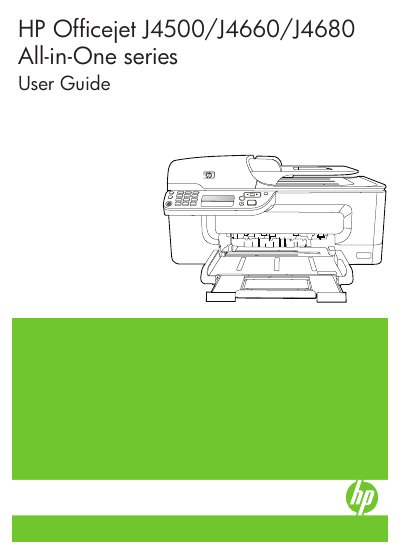
HP Officejet J4500/J4660/J4680 All-in-One Series User Guide
The document serves as a comprehensive manual for the HP Officejet J4500, J4660, and J4680 All-in-One series. It covers essential topics including getting started with device parts, connecting to networks (including wireless setup for the J4680), and using control panel menus.
Read onlineHP J4500 specifications
| Physical size | 433.5 x 401.5 x 216.7 mm (17.1 x 15.8 x 8.5 inches) |
|---|---|
| Weight | 5.9 kg (13 lb) |
| Connectivity | USB 2.0‑compliant high speed device |
| Processor | ARM9 180 MHz |
| Duty cycle | Up to 3000 pages per month |
| Ink cartridges | Black and tri‑color ink cartridge |
All HP J4500 documents by type
Day-to-day operation, settings and troubleshooting. Start here if the product is already set up.
Questions answered in these manuals
What safety precautions should be followed when connecting the product to power?
You must use only a grounded electrical outlet when connecting the product to a power source.
From: HP Officejet J4500/J4660/J4680 All-in-One Series User Guide
Are there any user-serviceable parts inside the device?
No, there are no user-serviceable parts inside, so servicing must be done by qualified personnel.
From: HP Officejet J4500/J4660/J4680 All-in-One Series User Guide
What is the maximum monthly duty cycle?
The printer is rated for up to 3000 pages per month.
Which operating systems are supported for accessibility features?
The device works with Windows (including Windows XP and Vista) and Mac OS, and supports the accessibility options of each OS.
How can I set up wireless networking on the J4680 model?
The manual’s "设置设备的无线通信功能(仅限 HP Officejet J4680)" chapter explains how to configure 802.11 wireless settings via the printer’s control panel or installation wizard.
Where can I find troubleshooting steps for print quality problems?
The "打印质量差和意外的打印输出" and "解决打印问题" sections list common issues and corrective actions.