
This document is a user's guide for P-touch Editor software on how to create labels.
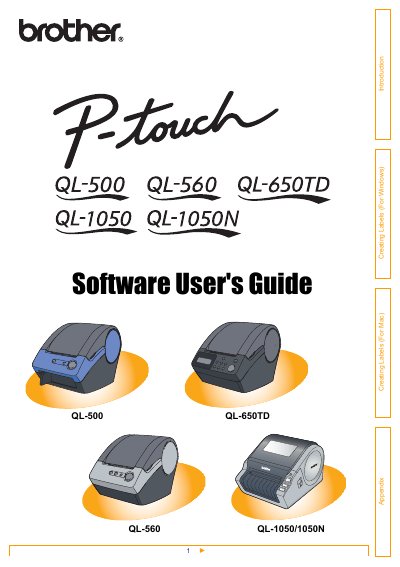
This manual provides step‑by‑step instructions for using the Brother QL series label printers. It covers installing the printer driver, setting up P‑touch Editor, creating various label types, and printing directly from the printer or via a PC on both Windows and macOS.
The guide also includes information on using the optional PS‑9000 print server, ESC/P commands, cutter settings, troubleshooting, and detailed product specifications such as printing speed, resolution, and supported interfaces.
| Printing method | Direct thermal printing via thermal head |
|---|---|
| Print head resolution | 300 dpi (720 dot) for QL‑500/560; 300 dpi (1296 dot) for QL‑650TD |
| Dimensions (QL‑500/560) | 146 mm (W) × 196 mm (D) × 152 mm (H) |
| Weight (QL‑500/560) | Approx. 1.3 kg (without DK rolls) |
| Cutter type | Automatic cutter on QL‑560; manual cutter on QL‑500; automatic cutter on QL‑650TD/1050/1050N |
Turn off the printer, open Control Panel → Printers and Faxes, select the Brother QL model, and choose File → Delete to remove the driver.