
Key facts
Start here
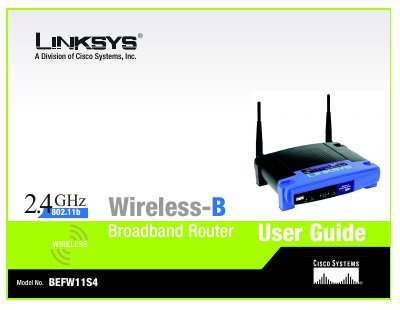
Linksys BEFW11S4 Wireless-B Broadband Router User Guide
This guide introduces the Linksys Wireless‑B Broadband Router, covering basic concepts, hardware layout, and the steps needed to connect the device to a DSL or cable modem and to your home network. It walks you through planning a wireless network, installing the router, and using the web‑based utility to configure basic and advanced settings.
Additional sections cover wireless security, firmware upgrades, troubleshooting, technical specifications, warranty details, and regulatory compliance, giving users a complete reference for operating and maintaining the router.
Linksys BEFW11S4 specifications
| Standards | IEEE 802.3, IEEE 802.3u, IEEE 802.11b |
|---|---|
| Channels (US/Canada) | 11 |
| Ports | 1 RJ‑45 modem port, 4 RJ‑45 switched ports |
| Speed | 10/100 Mbps (Half Duplex), 20/200 Mbps (Full Duplex) |
| Dimensions | 186 mm × 154 mm × 48 mm |
| Weight | 0.45 kg |
| Power | External 12 V DC, 1 A |
| Operating Temperature | 0 °C to 40 °C |
| Operating Humidity | 10 % to 85 % (non‑condensing) |
Source: Linksys BEFW11S4 Wireless-B Broadband Router User Guide
All Linksys BEFW11S4 documents by type
Day-to-day operation, settings and troubleshooting. Start here if the product is already set up.
Questions answered in these manuals
How do I set up the Linksys BEFW11S4 router?
Use the included Setup Wizard in the web‑based utility, which guides you step‑by‑step through the network configuration.
From: Linksys BEFW11S4 Wireless-B Broadband Router User Guide
What warranty does the router have?
Linksys provides a one‑year limited warranty that covers repair or replacement of the product when defects arise under normal use.
From: Linksys BEFW11S4 Wireless-B Broadband Router User Guide
What is the Linksys BEFW11S4 Wireless‑B Broadband Router?
It is a broadband router that shares an Internet connection among multiple computers via Ethernet cables or wireless adapters.
How can I upgrade the router’s firmware?
Use the Firmware Upgrade option in the Administration tab or follow the steps described in Appendix C.
What does the Power LED indicate?
The Power LED turns green when the power adapter is connected and the router is receiving power.
How do I reset the router to factory defaults?
Press the Reset button as described on page 6 of the manual.