
Key facts
- Brand
- HP
- Model
- 5.30
- Category
- Other software
- Industry
- Software
- Documents
- 18
- Languages
- JA · EN · ZH · ZH-TW
- Last added
- 2026-11-20
Start here
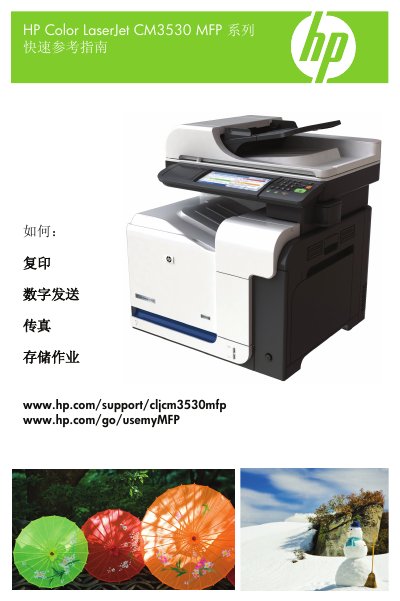
HP Color LaserJet CM3530 MFP Quick Reference Guide
This guide provides step‑by‑step instructions for common tasks on the HP Color LaserJet CM3530 MFP, such as making black‑and‑white or color copies, creating double‑sided copies, copying photos, and producing booklets. It also shows how to send scanned documents to email or a network folder, and how to send and receive faxes.
Additional sections explain how to store copy jobs, retrieve stored jobs, and use the simplified Chinese on‑screen keyboard. The guide is organized with numbered steps and screenshots for each operation. This manual is written in Chinese.
HP 5.30 specifications
| Method | drop-on-demand thermal inkjet |
|---|---|
| Optical Resolution | up to 1200 dpi |
| Hardware Resolution | up to 1200 x 1200 dpi |
| Maximum scan size from glass | 21.6 x 29.7 cm (8.5 x 11.7 inches) |
| Bitdepth | 24-bit color, 8-bit grayscale |
All HP 5.30 documents by type
Day-to-day operation, settings and troubleshooting. Start here if the product is already set up.
- HP Operations Smart Plug-in for Microsoft Active Directory 5.30 User Manual 66 p
- HP Switch Software Management and Configuration Guide for YA/YB.15.16 (2530 Series) 336 p
- HP ENVY 5530 e-All-in-One Series User Guide 108 p
- HP LaserJet Pro M1530 MFP Series User Guide 288 p
- HP LP3065 30-inch LCD Monitor User Guide 33 p
- HP Color LaserJet CM3530 MFP Analog Fax Accessory 500 User Guide 86 p
- HP LP3065 30-inch LCD Monitor User Guide 33 p
- HP CM3530 MFP Series User Manual 284 p
- HP Photosmart D5300 Series User Manual 143 p
- HP 615306-AA1 Laptop User Manual 38 p
- HP Photosmart C5300 All-in-One Basics Guide 54 p
- HP Scanjet 5530 Flatbed Scanner User Manual 33 p
- HP LaserJet Pro M1530 MFP User Manual 288 p
- HP Officejet Pro K5300/K5400 Printer User Manual 101 p
Mounting, wiring and first power-up. Read it before the hardware goes in.
The shortest path to a working setup, usually only a few pages.
Questions answered in these manuals
What becomes available in HP Operations for Windows after installing this SPI?
Monitoring or mapping functions for single-master operations, replication, DNS, DIT, GC, and trust relationships become available.
From: HP Operations Smart Plug-in for Microsoft Active Directory 5.30 User Manual
What information does the SPI continuously provide?
It continuously provides information about the state of Active Directory across the network.
From: HP Operations Smart Plug-in for Microsoft Active Directory 5.30 User Manual
Which switch models does this guide apply to?
The guide applies to the HP Switch 2530-series, including models J9772A, J9773A, J9774A, J9775A, J9776A, J9777A, J9778A, J9779A, J9780A, J9781A, J9782A and J9783A.
From: HP Switch Software Management and Configuration Guide for YA/YB.15.16 (2530 Series)
Does this guide cover upgrading or replacing switch hardware?
No. The guide states that it does not provide information about upgrading or replacing switch hardware.
From: HP Switch Software Management and Configuration Guide for YA/YB.15.16 (2530 Series)
What is the recommended operating temperature range for the printer?
The recommended operating temperature range is 15ºC to 32ºC (59ºF to 90ºF).
What are the supported file types for scanning?
Supported file types include BMP, JPEG, PNG, TIFF, and PDF.