
Key facts
Start here
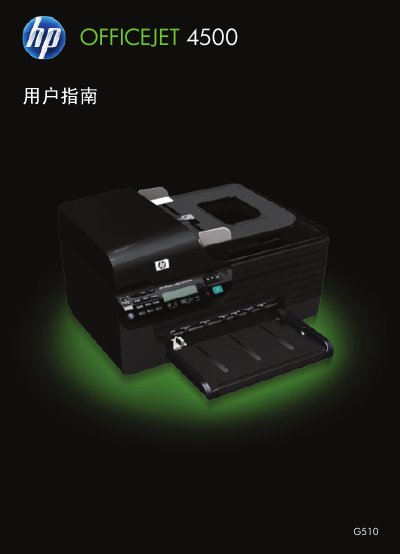
HP Officejet 4500 G510 All-in-One User Guide
This document serves as the user guide for the HP Officejet 4500 (G510) All-in-One Series. It covers essential topics including getting started with the device, understanding its components and control panel, and selecting appropriate print media.
The guide details procedures for printing documents, photos, and web pages on various paper types, as well as scanning originals using the glass or automatic document feeder (ADF). It also explains how to copy documents and send/receive faxes via telephone or network. Additionally, it provides instructions for ink cartridge maintenance, cleaning, and replacement. This manual is written in Chinese.
All HP OfficeJet 4500 G510 documents by type
Day-to-day operation, settings and troubleshooting. Start here if the product is already set up.
Mounting, wiring and first power-up. Read it before the hardware goes in.
Questions answered in these manuals
Can I use the scanner glass for documents that do not meet paper specifications?
Yes, you should use the scanner glass to scan or copy documents containing pages that do not meet the requirements listed in the media tips.
What should I do if the device does not respond?
If the device is unresponsive, check for error messages on the control panel display and refer to the troubleshooting section.
How do I load paper into the main tray?
Insert unused, plain, white A4 or letter‑size paper, print‑side down, along the right edge of the main tray and adjust the guides to the paper size.
How do I set up fax on the OfficeJet 4500 G510?
Connect the phone cord to the wall jack and the printer’s 1‑LINE port, then use the Fax Setup Wizard (Windows) or HP Utility (Mac) to configure fax settings.
What safety precautions should I follow when using this printer?
Read all instructions, follow warnings on the printer, unplug before cleaning, keep the printer away from water, and install it on a stable, protected surface.
How do I set up fax on the HP OfficeJet 4500 G510?
Connect the printer to a telephone line using the provided phone cord, then run the fax test from the Tools menu to verify the connection and configure fax settings.