
Key facts
- Brand
- NETGEAR
- Model
- R7500
- Category
- Router
- Industry
- Electronics
- Documents
- 2
- Languages
- ZH
- Last added
- 2026-11-20
Start here
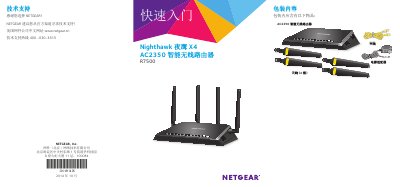
NETGEAR Nighthawk X4 AC2350 Smart Router R7500 User Manual
This document is a user manual for the NETGEAR Nighthawk X4 AC2350 Smart Router (Model R7500). It provides step-by-step instructions for installing the device, connecting it to a modem, and configuring initial wireless settings. The guide details how to install antennas, connect via Ethernet or Wi-Fi, and access the management interface using the NETGEAR Genie wizard. This manual is written in Chinese.
Read onlineNetgear R7500 specifications
| Model | R7500 |
|---|---|
| Antennas | 4 |
| 5G wireless channels | 149 / 151 / 153 / 157 / 161 |
| Recommended distance from body | 20cm |
Source: Netgear R7500 Nighthawk X4 AC2350 Wireless Router Installation Guide
All Netgear R7500 documents by type
Mounting, wiring and first power-up. Read it before the hardware goes in.
Day-to-day operation, settings and troubleshooting. Start here if the product is already set up.
Questions answered in these manuals
Which network port connects to the modem?
The yellow network port on the back connects to the ADSL or fiber modem.
From: Netgear R7500 Nighthawk X4 AC2350 Wireless Router Installation Guide
What are the default login username and password?
The default username is admin and the default password is password.
From: Netgear R7500 Nighthawk X4 AC2350 Wireless Router Installation Guide
What is the default username and password for the router management page?
The default username is admin and the password is password.
From: NETGEAR Nighthawk X4 AC2350 Smart Router R7500 User Manual
How can I turn off the LED lights on the router?
Use the LED Off/On switch located on the back panel of the router.
From: NETGEAR Nighthawk X4 AC2350 Smart Router R7500 User Manual