
Key facts
Start here
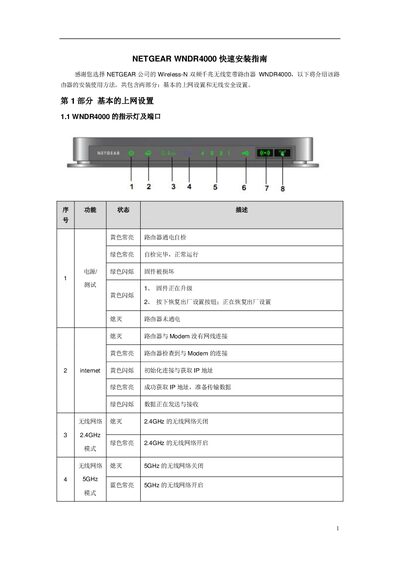
Netgear WNDR4000 Router Quick Start Guide
This Quick Start Guide walks you through connecting the Netgear WNDR4000 router, interpreting the LED indicators and ports, and accessing the web‑based management interface. It covers basic internet configuration (PPPoE, static or dynamic IP), wireless network setup for both 2.4 GHz and 5 GHz bands, and security settings such as passphrase creation.
Additional sections explain how to upgrade firmware, restore factory defaults, and troubleshoot common issues like IP address conflicts. The guide also provides detailed instructions for Windows XP and Vista clients to join the wireless network. This manual is written in Chinese.
NETGEAR WNDR4000 specifications
| Supported Wi‑Fi Bands | 2.4 GHz and 5 GHz |
|---|---|
| LAN/WAN Speed | 10/100/1000 Mbps |
| USB Port | USB 2.0 (backward compatible with 1.0/1.1) |
| Default IP Address | 192.168.1.1 (or 10.0.0.1 if conflict) |
All NETGEAR WNDR4000 documents by type
The shortest path to a working setup, usually only a few pages.
Day-to-day operation, settings and troubleshooting. Start here if the product is already set up.
Questions answered in these manuals
How do I reset the WNDR4000 to factory settings?
Press and hold the reset button on the back of the router for 15 seconds until the power LED stops flashing and becomes solid.
How can I access the router’s web interface?
Open a web browser and go to http://www.routerlogin.com, http://www.routerlogin.net, or directly to the router’s IP address such as http://192.168.1.1.
How do I upgrade the router firmware?
Use the "Upgrade Firmware" section in Chapter 5 to check for and install the latest firmware version.
From: Netgear WNDR4000 N750 Wireless Dual Band Gigabit Router User Manual
How can I restore the router to factory default settings?
Select the factory settings option in the router interface as described in the "Restoring the Factory Settings and Password" section.
From: Netgear WNDR4000 N750 Wireless Dual Band Gigabit Router User Manual