
Key facts
- Brand
- Kodak
- Model
- ESP 5200 Series
- Category
- All-in-one printer
- Documents
- 3
- Languages
- EN
- Last added
- 2023-10-17
Start here
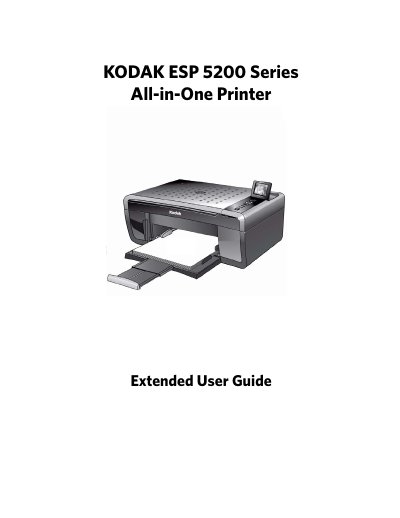
Kodak ESP 5200 Series All-in-One Printer User Guide
This guide provides step-by-step instructions for using the Kodak ESP 5200 Series All-in-One Printer. It covers printing documents and photos, copying, scanning, connecting to wireless networks, and maintaining the printer. The guide also includes troubleshooting tips and software configuration options for both Windows and Mac OS systems.
The printer features Wi-Fi connectivity, a control panel with LCD display, USB port, and multiple paper tray options. Users can configure settings such as date/time, power-saving mode, and tagged image printing. The guide includes detailed sections for handling different paper types, transferring pictures to computers, and updating printer firmware.
Kodak ESP 5200 Series specifications
| Plain paper capacity | 100 sheets |
|---|---|
| Photo paper capacity | 20 sheets |
| Plain paper weight | 20 to 24 lb / 75 to 90 gsm |
| Card stock weight | 110 lb / 200 gsm, max |
| Supported paper sizes | 4 x 6 in. / 10 x 15 cm to 8.5 x 14 in. / 22 x 36 cm |
All Kodak ESP 5200 Series documents by type
Day-to-day operation, settings and troubleshooting. Start here if the product is already set up.
Questions answered in these manuals
What memory cards does the printer accept?
The printer accepts SD Card, SDHC Card, MMC Card, and MEMORY STICK, as well as variations requiring an adapter.
How do I load photo paper?
Insert the photo paper with the logo side facing up and the glossy side down, then move it forward until it stops.
What software comes with the printer?
The printer includes KODAK Home Center Software, which allows you to browse, edit, print, scan, and upgrade the printer using your computer.
How do I change the printer's time to low power?
You can adjust the delay time (in 0.5 hour increments) up to 4 hours. Increasing the delay time may result in reduced energy savings.
How do I set up a wireless network on the printer?
Use the wireless network settings in Home Center Software to configure the SSID and WPA/WPA2 passphrase.
How can I replace the ink cartridges?
Open the printer access door, remove the printhead, and replace the ink cartridges as described.