
Key facts
Start here
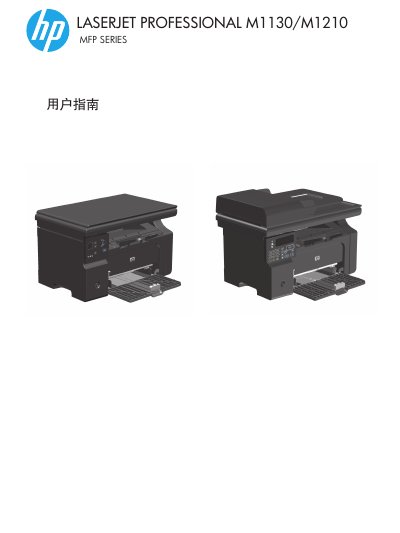
HP LaserJet Professional M1130/M1210 MFP Series User Guide
This guide covers the basic information, hardware layout, and software options for the HP LaserJet Professional M1130/M1210 multifunction printers. It details control‑panel menus, supported Windows and macOS drivers, network connectivity, and the built‑in web server for the M1210 model.
The manual also explains how to perform printing, copying, scanning, and (for the M1210) fax functions, along with paper‑handling rules, media specifications, and step‑by‑step troubleshooting procedures to resolve common issues such as paper jams, print quality problems, and connectivity errors. This manual is written in Chinese.
HP M1130/M1210 specifications
| Input tray capacity | 150 sheets of 60 g/m² (16 lb) bond |
|---|---|
| Output bin capacity | Up to 100 sheets of 75 g/m² (20 lb) bond |
| Supported paper weight range | 60 g/m² (16 lb) to 163 g/m² (43 lb) bond |
Source: HP LaserJet Professional M1130/M1210 MFP Series User Guide
All HP M1130/M1210 documents by type
Day-to-day operation, settings and troubleshooting. Start here if the product is already set up.
- HP LaserJet Professional M1130/M1210 MFP Series User Guide 32 p
- HP LaserJet Professional M1130/M1210 MFP Series User Guide 284 p
- HP LaserJet Professional M1130/M1210 MFP Series User Guide 264 p
- HP LaserJet Professional M1130/M1210 User Manual 260 p
- HP LaserJet Professional M1130/M1210 MFP Series User Guide 278 p
Questions answered in these manuals
What is the purpose of the carbon toner level indicator light?
The carbon toner level indicator light shows whether the toner in the print cartridge is low.
From: HP LaserJet Professional M1130/M1210 MFP Series User Guide
How do you reset the copy settings to default values?
Press the Cancel button when the product is in the ready state to reset copy settings to default.
From: HP LaserJet Professional M1130/M1210 MFP Series User Guide
How can I print multiple pages on a single sheet?
Use the n‑up printing option in the Windows driver to place several pages on one sheet of paper.
From: HP LaserJet Professional M1130/M1210 MFP Series User Guide
What is the maximum number of sheets the input tray can hold?
The input tray can hold up to 150 sheets of 60 g/m² (16 lb) bond paper.
From: HP LaserJet Professional M1130/M1210 MFP Series User Guide
Which paper weights are supported by the printer?
The printer supports paper weights from 60 g/m² (16 lb) up to 163 g/m² (43 lb) bond.
From: HP LaserJet Professional M1130/M1210 MFP Series User Guide
How do I change the default paper size on the M1130 series?
Use the menu option “更改默认纸张尺寸设置( M1130 系列)” to adjust the default paper size.