
Key facts
Start here
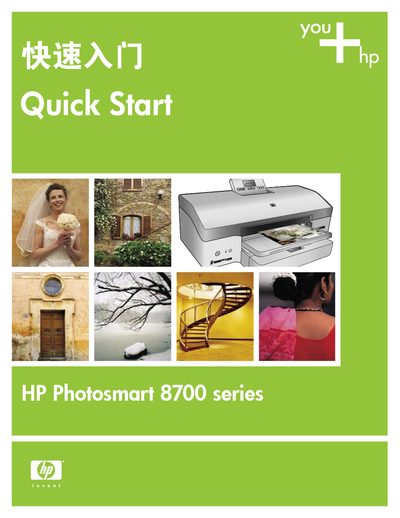
HP Photosmart 8700 series Quick Start Guide
This guide walks you through the initial setup of the HP Photosmart 8700 series printer, including removing packaging, connecting power, selecting language and region, loading paper, and installing the tri‑color and gray photo cartridges. It also covers network installation for both Macintosh and Windows computers and how to install the accompanying software.
Additional resources such as the full User's Guide, troubleshooting tips, and FAQs about color management, borderless printing, and large‑format templates are referenced throughout the document to help you get the most out of your printer. This manual is written in Chinese.
HP 8700 series specifications
| Weight | 11.8 kg (26 lb) |
|---|---|
| Dimensions (H × W × D) | 203 mm × 643 mm × 398 mm |
| Operating Temperature | 0–45 °C (32–113 °F) |
| Operating Humidity | 20–80 % RH (recommended) |
| Supported Media Size (Computer Print) | 76 × 127 mm to 330 × 483 mm (3 × 5" to 13 × 19") |
| Main Tray Capacity | 100 sheets of plain paper |
Source: HPPhotosmart 8758PrinterManual
All HP 8700 series documents by type
Day-to-day operation, settings and troubleshooting. Start here if the product is already set up.
The shortest path to a working setup, usually only a few pages.
Questions answered in these manuals
How can I connect the printer to a network?
Use the Ethernet port on the back of the printer and follow the network configuration steps in the Network Connection section of the guide.
What are the recommended operating conditions?
The printer is designed to operate between 0 °C and 45 °C with 20 % to 80 % relative humidity.
How do I turn on the color management settings in the printer software?
Open the file you want to print, then on Windows select File > Print, click Properties in the Print dialog box, and click the Color tab to choose a setting from the Color management menu.
How do I print a borderless photo from the printer control panel?
Insert a memory card with photos, select the photo on the printer control panel, press the Layout button, choose the One photo per sheet, borderless icon, and press Print.