
Key facts
- Brand
- Brother
- Model
- PT-2430PC
- Category
- Other Computer Accessories
- Industry
- Computers
- Documents
- 3
- Languages
- EN · ZH
- Last added
- 2012-07-02
Start here
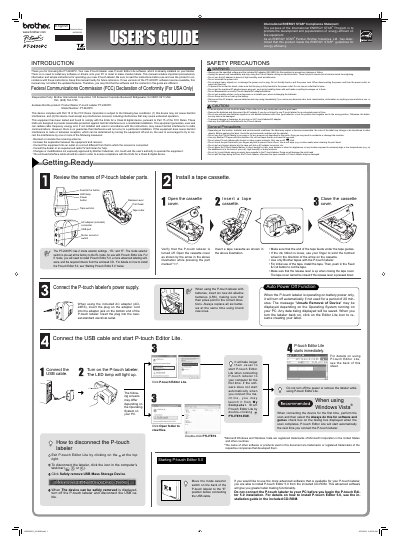
Brother PT-2430PC P-touch Labeler User's Guide
The Brother PT-2430PC is an electronic labeling system that comes with P-touch Editor Lite software pre-installed. This manual provides instructions on using the device to create labels without needing to install additional drivers or software on a PC.
The guide includes important safety precautions, such as using only specified voltage and AC adapters, avoiding moisture, and proper battery handling. It also details how to connect the labeler via USB, operate P-touch Editor Lite, and switch between EL and E modes for different labeling needs.
Brother PT-2430PC specifications
| Dimensions (W×L×H) | 67 mm × 188 mm × 111 mm |
|---|---|
| Weight (without battery and tape) | 570 g |
| Power source | AD‑24 AC adapter or 6 × LR06 alkaline batteries |
| Battery type | 6 × LR06 (AA) alkaline cells |
| USB port type | Mini‑USB B |
| Supported label tape widths | 3.5 mm, 6 mm, 9 mm, 12 mm, 18 mm, 24 mm |
| Operating system requirements | Windows 2000/XP/Vista |
| Minimum system memory | 128 MB (512 MB for Vista) |
| USB interface | USB 1.1 or 2.0 |
All Brother PT-2430PC documents by type
Day-to-day operation, settings and troubleshooting. Start here if the product is already set up.
Questions answered in these manuals
What batteries are required to operate the labeler?
The device requires six new AA alkaline batteries (LR6) with poles pointing in the correct directions.
How long does it take for the labeler to turn off automatically on battery power?
The unit will shut down if not used for a period of 20 minutes.
How can I restart P‑touch Editor Lite while the label maker is still on?
You can either turn the label maker off and on again, disconnect and reconnect the USB cable, or launch the program from My Computer.
What should I do if the LED keeps flashing?
Press the feed & cut button to clear the error; if it continues, contact Brother customer service.