
This user guide covers the features of the HP Photosmart D5100 series printers. It explains how to install the printer, use the printer, manage print jobs, use HP Photosmart applications, and troubleshoot printing problems.
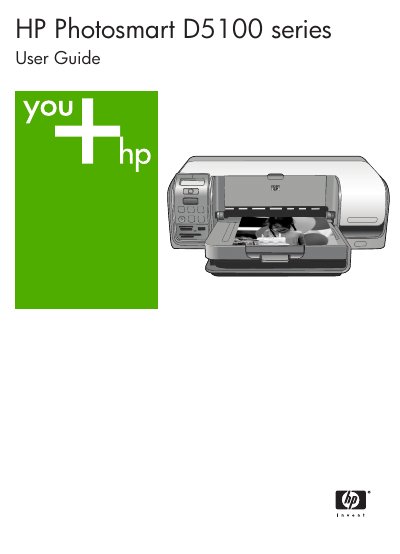
The HP D5100 Series is a photo printer that can print on plain paper, photo paper, CDs, and DVDs. It supports printing directly from memory cards, digital cameras, Bluetooth devices, and iPods, as well as from a computer using HP software.
This guide covers getting the printer ready, loading media, using the control panel, connecting to a computer, maintaining the printer, and troubleshooting common issues. Detailed specifications and warranty information are also included.
| Supported Windows operating systems | Windows 98, 2000 Professional, Me, XP Home, XP Professional |
|---|---|
| Processor requirement | Intel® Pentium® II (or equivalent) or higher |
| Minimum RAM | 128 MB |
| Supported photo paper size | 10 × 15 cm (4 × 6 in) |
| USB connectivity | USB 2.0 full‑speed |
Open the main tray and place the paper inside; the main tray is labeled "Load paper here."
A flashing red light (the Attention indicator) signals an error or that user action is required.
Insert the memory card into the memory‑card slot on the printer and use the control panel to select and print the photos.