
Key facts
- Brand
- Canon
- Model
- LiDE 20/LiDE 30
- Category
- Scanner
- Industry
- Electronics
- Documents
- 2
- Languages
- FR · ZH
- Last added
- 2026-11-18
Start here
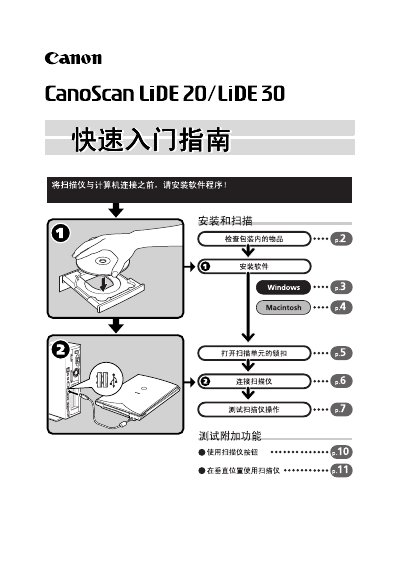
Canon LiDE 20/LiDE 30 Quick Start Guide
The guide provides step‑by‑step instructions for unpacking the scanner, unlocking the scanner unit, connecting it with the supplied USB cable, and installing the required software on Windows or Macintosh computers. It also explains how to operate the three scanner buttons (Scan, Copy, E‑Mail) and outlines troubleshooting tips.
Technical specifications are listed, including the flatbed type, CIS sensor, RGB LED light source, optical resolution up to 1200 × 2400 dpi (optional 9600 dpi), USB 2.0 interface, maximum document size A4/Letter, and power supplied via the USB port. This manual is written in Chinese.
Canon LiDE 20/LiDE 30 specifications
| Scanner type | Flatbed |
|---|---|
| Scan element | CIS (Contact Image Sensor) |
| Light source | 3‑color (RGB) LED |
| Interface | USB 2.0 Full Speed (USB 1.1 compatible) |
| Buttons | 3 (Scan, Copy, E‑Mail) |
| Power source | Provided via USB port |
| Power consumption | Maximum 2.5 W (idle 1.25 W) |
| Weight | ≈1.5 kg (3.3 lb) |
All Canon LiDE 20/LiDE 30 documents by type
Day-to-day operation, settings and troubleshooting. Start here if the product is already set up.
The shortest path to a working setup, usually only a few pages.
Questions answered in these manuals
How can a scan be started on the Canon CanoScan LiDE 20/LiDE 30?
You can start a scan by pressing a scanner button, clicking a CanoScan Toolbox button, or launching the scan from an application.
Which associated programs are described in this Canon CanoScan LiDE 20/LiDE 30 guide?
The guide covers ScanGear CS, CanoScan Toolbox, PhotoStudio, PhotoBase, OmniPage SE and Acrobat Reader.
What cable should be used to connect the scanner to the computer?
Only the USB interface cable supplied with the scanner should be used; other cables may cause faults.
How many buttons does the scanner have and what are they?
The scanner has three buttons labeled Scan, Copy, and E‑Mail.