
Key facts
- Brand
- Gigabyte
- Model
- D1080
- Category
- Other Computer Accessories
- Industry
- Computers
- Documents
- 6
- Languages
- CS · ES · EN
- Last added
- 2012-05-11
Start here
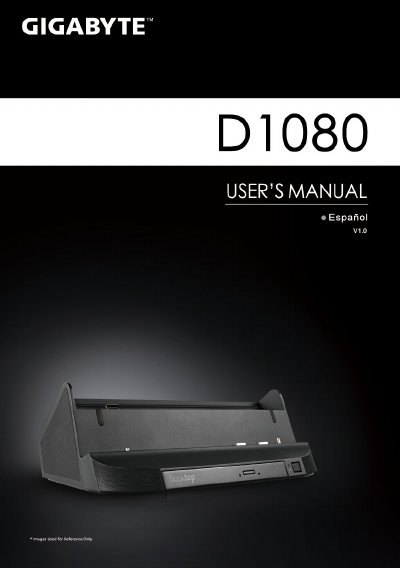
GIGABYTE D1080 User Manual(1)
This Quick Start Guide provides step‑by‑step instructions for installing and using the Gigabyte S1080/S1081 docking station. It includes information on connecting the power adapter, inserting the driver CD, and configuring optional sensors.
The guide lists all available ports—D‑sub, three USB ports, RJ45, microphone, headphone, DC‑in jack, docking port, bacteria‑extension connector, and HDMI—as well as the built‑in DVD Super Multi‑Layer optical drive and speaker/woofer configuration. Warranty and support links are also provided. This manual is written in Spanish.
Gigabyte D1080 specifications
| USB ports | 3 |
|---|---|
| Ethernet port | RJ45 |
| Audio jacks | 3.5 mm input and output |
| DC‑In connector | present |
| Optical drive | DVD‑Super Multi‑Layer |
| HDMI port | present |
All Gigabyte D1080 documents by type
Day-to-day operation, settings and troubleshooting. Start here if the product is already set up.
The shortest path to a working setup, usually only a few pages.
Questions answered in these manuals
How do I connect the power supply?
Connect the power adapter to the DC‑In connector on the docking station and plug the power cable into a wall outlet.
Which operating systems are supported by the docking station?
The docking station only supports Windows 7 Home Premium and later versions.
How do I install the drivers for the docking station?
Insert the driver CD into the optical drive and run the installer to install the Booktop Express software.
What operating system is required for the Booktop Express?
The Booktop Express is only supported on Windows 7 Home Premium version and above.
What items are included in the package?
The package includes an AC adapter, a power cord, the manual, and a driver CD.