
Key facts
Start here
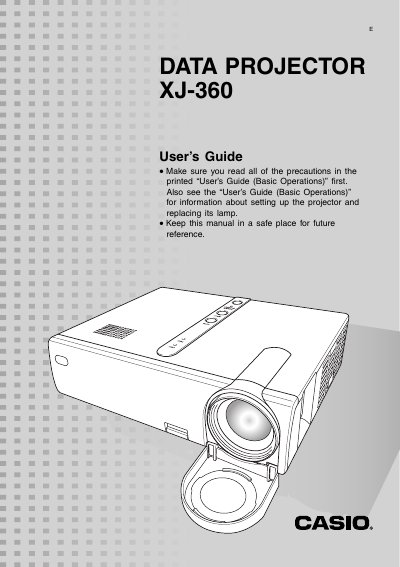
Casio XJ-360 Data Projector User's Guide
The Casio XJ-360 is a data projector designed to display images from various input sources including computers and video devices. The manual explains how to set up the device, select input sources automatically or manually, and perform fine adjustments for projection position and angle.
Key operational features include auto keystone correction to counteract vertical distortion when projecting at an angle, as well as manual correction options. Users can adjust image size using a zoom ring and focus using a dedicated focus ring. The guide also details how to mute audio, freeze images, display pointers, and access the setup menu for signal and screen settings.
Casio XJ-360 specifications
| HDTV 1080i60 Horizontal frequency | 33.7 kHz |
|---|---|
| HDTV 1080i60 Vertical frequency | 60 Hz |
| 720p60 Horizontal frequency | 45.0 kHz |
| NTSC Horizontal frequency | 15.7 kHz |
| PAL Horizontal frequency | 15.6 kHz |
Source: Casio XJ-360 User's Guide
All Casio XJ-360 documents by type
Day-to-day operation, settings and troubleshooting. Start here if the product is already set up.
Questions answered in these manuals
How does the projector select input sources automatically?
When turned on, it checks each input source in a specific sequence and selects the first one sending a signal.
What happens if no input signal is detected?
The message 'No signal input' appears in place of the input source name on the screen.
What is the operating temperature range for this projector?
The operating temperature range is 5°C to 35°C (41 to 95°F).
From: CASIO XJ-360 Projector User's Guide (Basic Operations)
How much space should be left between the projector and walls?
You must allow at least 30cm (11.8 inches) between the projector and walls.
From: CASIO XJ-360 Projector User's Guide (Basic Operations)
How do I manually select the input source?
Press the [INPUT] key on the projector or use the RGB/COMPONENT, VIDEO, or S‑VIDEO keys on the remote controller to cycle through sources.
How do I adjust the image size and focus?
Use the zoom ring to change image size and the focus ring to focus; it is best to focus first before zooming.