
Key facts
- Brand
- DELL
- Model
- Inspiron 20 3000
- Category
- All-in-One Desktops
- Documents
- 28
- Languages
- ZH · EN · MUL · RO · ES · PT
- Last added
- 2023-11-26
Start here
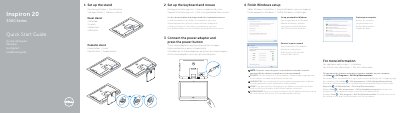
Dell Inspiron 20 3000 Series Computer Windows Setup Quick Start Guide
This multilingual quick start guide is for the Dell Inspiron 20 3000 Series computer, with the computer model listed as Inspiron 20-3059. It shows how to attach an easel stand or pedestal stand, connect the power adapter, press the power button, and set up the keyboard and mouse.
The guide then covers finishing Windows setup, setting a Windows password, connecting to a network, and protecting the computer. It also lists features such as USB ports, HDMI-in, audio-out, media-card reader, camera, microphones, power button, screen-off button, brightness-control buttons, and optional optical drive, plus Dell support links.
Dell Inspiron 20 3000 specifications
| Computer model | Inspiron 20-3064 |
|---|---|
| Height | 317.64 mm (12.51 inches) |
| Width | 480.52 mm (18.92 inches) |
| Weight without stand (touchscreen) | 4.21 kg |
| Weight without stand (non-touchscreen) | 3.43 kg |
| Memory type | DDR4 |
| Memory speed | Up to 2400 MHz |
| Memory configurations | 2 GB, 4 GB, and 8 GB |
| Memory slots | Two SODIMM slots |
| Ethernet controller | Integrated 10/100 Mbps controller |
| Wireless | Wi-Fi 802.11ac, Wi-Fi 802.11b/g/n, Bluetooth 4.0 |
| Audio controller | Realtek ALC3661 Waves MaxxAudio Pro |
| Speakers | Two; average 3 W, peak 3.50 W |
| Hard drive | One 2.5-inch drive |
| Optical drive | One 9.5 mm DVD +/- RW drive (optional) |
| Media card reader | One 4-in-1 slot |
| Display type | 19.5-inch HD+ touchscreen or non-touchscreen |
| Maximum resolution | 1600 x 900 pixels |
| Refresh rate | 60 Hz |
| Camera resolution (photos) | 920 thousand pixels |
| Camera video resolution | 1280 x 720 at up to 30 FPS |
| USB ports | Two USB 2.0 ports and two USB 3.0 ports |
| Network port | One RJ45 port |
| Video controllers | Intel HD Graphics 620; Nvidia GeForce 920M |
| Power adapter | 65 W and 90 W |
| Power adapter input voltage | 100 VAC to 240 VAC |
| Power adapter rated output voltage | 19.50 VDC |
All Dell Inspiron 20 3000 documents by type
Day-to-day operation, settings and troubleshooting. Start here if the product is already set up.
The shortest path to a working setup, usually only a few pages.
- Dell Inspiron 20 3000 Series Computer Windows Setup Quick Start Guide 2 p
- Dell Inspiron 20 3000 Series All-in-One Quick Start Guide 2 p
- Dell Inspiron 20 3000 Series (20-3059) Computer Quick Start Guide 2 p
- Dell Inspiron 20 3000 Series Computer Quick Start Guide 2 p
- Dell Inspiron 20 3000 Series All-in-One Quick Start Guide 2 p
- Dell Inspiron 20 3000 Series Quick Start Guide 2 p
- Dell Inspiron 20 3000 Series Quick Start Guide 2 p
- Dell Inspiron 20 3000 Series Quick Start Guide 2 p
- Dell Inspiron 20 3000 Series Quick Start Guide 2 p
- Dell Inspiron 20 3000 Series (Inspiron 20-3052) Quick Start Guide 2 p
- Dell Inspiron 20 3000 Series Quick Start Guide 2 p
- Dell Inspiron 20 3000 Series Quick Start Guide 2 p
- Dell Inspiron 20 3000 Series Quick Start Guide 2 p
- Dell Inspiron 20 3000 Series All-in-One Desktop Quick Start Guide 2 p
- Dell Inspiron 20 3000 Series Desktop Quick Start Guide 2 p
- Dell Inspiron 20 3000 Series Quick Start Guide 2 p
- Dell Inspiron 20 3000 Series Computer Quick Start Guide 2 p
Disassembly, diagnostics and part numbers, for repair.
- Dell Inspiron 20 3000 Series Computer Service Manual 84 p
- Dell Inspiron 20 3000 Series Service Manual 88 p
- Dell Inspiron 20 3000 Series (Inspiron 20-3059) Service Manual 84 p
- Dell Inspiron 20 3000 Service Manual 86 p
- Dell Inspiron 20 3000 Series (Inspiron 20-3059) Service Manual 82 p
- Dell Inspiron 20 3000 Series Service Manual 86 p
- Dell Inspiron 20 3000 Series Service Manual 86 p
- Dell Inspiron 20 3000 Series Service Manual 86 p
- Dell Inspiron 20 3000 Series Service Manual 86 p
Questions answered in these manuals
How do I set up the stand of the Dell Inspiron 20 3000?
For the pedestal stand, lift the stand riser, connect the base, and tighten the securing screw to fix the base to the stand riser.
What are the setup steps after connecting the power adapter?
Press the power button, then complete the operating system setup by connecting to the network and signing in to a Microsoft account or creating a local account for Windows, or by following the on-screen instructions for Ubuntu.
How do I start the computer after setting up the stand?
Connect the power adapter and press the power button.
From: Dell Inspiron 20 3000 Series Computer Windows Setup Quick Start Guide
What should I do if I connect to a secured wireless network?
Enter the password for the wireless network access when prompted.
From: Dell Inspiron 20 3000 Series Computer Windows Setup Quick Start Guide
How do you finish operating system setup?
Follow the instructions on the screen to finish setup.
From: Dell Inspiron 20 3000 Series All-in-One Quick Start Guide
What should you do if you are connecting to a secured wireless network?
Enter the password for the wireless network access when prompted.
From: Dell Inspiron 20 3000 Series All-in-One Quick Start Guide