
Key facts
Start here
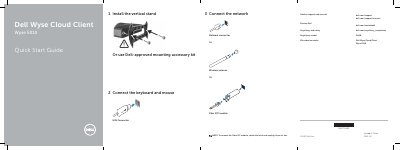
Dell Wyse 5010 Cloud Client Quick Start Guide
This guide helps you set up your Dell Wyse 5010 Cloud Client. Connect your keyboard, mouse, display, and power cable. Install the vertical stand if needed. Connect to network using Ethernet or fiber SFP. Turn on the device and wait for the activity light to turn off to confirm it’s ready.
The device features multiple ports including DisplayPort, DVI-I, VGA, USB 2.0, network, and headphone/microphone jack. It supports 10/100/1000 Base-T or SFP networking and includes a wireless antenna port (optional).
Dell Wyse 5010 specifications
| Power Input | +19V Power adapter input |
|---|---|
| Network Port | 10/100/1000 Base-T or SFP |
| USB Ports | USB 2.0 port (2x) |
| Display Ports | Display Port connector, DVI-I port [1x DVI-D / 1x VGA] |
All Dell Wyse 5010 documents by type
The shortest path to a working setup, usually only a few pages.
- Dell Wyse 5010 Cloud Client Quick Start Guide 2 p
- Dell Wyse 5010 Cloud Client Quick Start Guide 2 p
- Dell Wyse Cloud Client Wyse 5010 Quick Start Guide 2 p
- Dell Wyse Cloud Client Wyse 5010 Quick Start Guide 2 p
- Dell Wyse 5010 Cloud Client Quick Start Guide 2 p
- Dell Wyse Cloud Client Wyse 5010 Quick Start Guide 2 p
- Dell Wyse Cloud Client Wyse 5010 Quick Start Guide 2 p
Questions answered in these manuals
What is the model of the client device?
The client device model is Dell Wyse Cloud Client Wyse 5010.
What is the power input specification for the client device?
The client device uses a +19V Power adapter input.
When is the client device ready to use?
The client device is ready to use when the client device activity light goes off.
How do you remove the Fibre SFP module?
To remove the Fibre SFP module, rotate the latch and unplug it from its slot.
When is the Wyse 5010 ready to use?
It is ready to use when the client device activity light goes off.
How do you remove the Fibre SFP module?
Rotate the latch and unplug it from its slot.