
Key facts
Start here
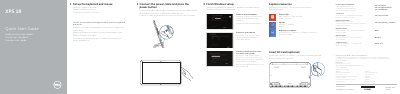
Dell XPS 18 Wireless Keyboard and Mouse Quick Start Guide
This guide helps you set up your wireless keyboard and mouse with your Dell XPS 18. Connect the power cable and press the power button to begin. Follow steps to enable security and updates, sign in to your Microsoft account, and connect to your network. Optional accessories like an SD card or powered stand are also covered.
The guide includes multilingual instructions and diagrams for components like microphones, camera, USB ports, and battery status indicators. It also references regulatory compliance and service tag information for support and warranty purposes.
Dell XPS 18 specifications
| Processor | Intel Core i3/i5/i7 ULV (4th generation) |
|---|---|
| Display | 18.4-inch full-HD with multi-point capacitive touch |
| Resolution | 1920 x 1080 |
| Memory | 4 GB, 8 GB, and 12 GB |
| Weight | 2.41 kg (5.31 lb) |
| Power Adapter Output | 19.5 VDC |
Source: Dell XPS 1820 User's Manual
All Dell XPS 18 documents by type
The shortest path to a working setup, usually only a few pages.
Day-to-day operation, settings and troubleshooting. Start here if the product is already set up.
Questions answered in these manuals
What is the power input voltage for the XPS 18?
The power input voltage is 100 V CA–240 V CA.
From: Dell XPS 18 Wireless Keyboard and Mouse Quick Start Guide
What are the power output specifications for the device?
The output voltage is 19,50 V CC and the output current consumption is 3,34 A.
From: Dell XPS 18 Wireless Keyboard and Mouse Quick Start Guide
Where is the Service Tag located?
The Service Tag and Express Service Code are located on a label at the back of your computer.
What is the maximum resolution of the display?
The maximum resolution is 1920 x 1080.
What is the maximum weight of the Dell XPS 1820?
The maximum weight of the computer is 2.41 kg (5.31 lb).
What type of memory does the Dell XPS 1820 support?
The system supports DDR3L memory with a speed of 1600 MHz.