
Key facts
Start here
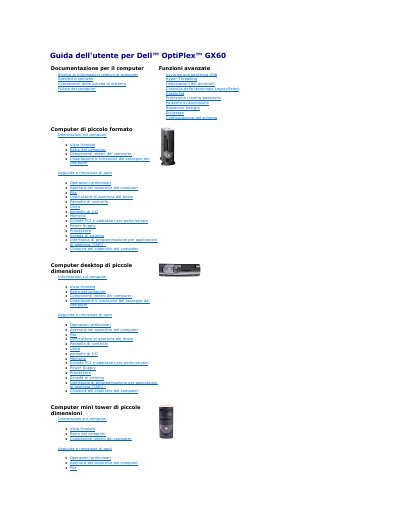
Dell OptiPlex GX60 User's Guide
This Dell OptiPlex GX60 user guide covers computer information, technical specifications, system board components, cleaning, advanced functions, jumper settings, LegacySelect technology control, manageability, password protection, power button, energy saving, security, and system configuration.
It also describes small form factor, small desktop, and small mini tower computer layouts, adding and removing parts, troubleshooting, glossary terms, safety instructions, ergonomic habits, regulatory notices, and warranty and return information. This manual is written in Italian.
All Dell OptiPlex GX60 documents by type
Day-to-day operation, settings and troubleshooting. Start here if the product is already set up.
Questions answered in these manuals
How do I boot the Dell OptiPlex GX60 from a USB memory device?
Connect the memory device to a USB port and restart the computer. When F12 = Boot Menu appears, press F12, then select the number shown next to the USB device from the boot menu.
How can I tell whether Hyper-Threading is enabled?
Open Device Manager and expand the processor type. If Hyper-Threading is enabled, the processor is listed twice.
How do I boot from a USB device?
Insert the USB device, restart the computer, and press F2 when the Boot Menu appears. Select the USB device from the boot menu.
How can I check if my computer supports Hyper-Threading?
Open System Properties, go to Hardware > Device Manager, expand the processor category. If Hyper-Threading is enabled, the processor will appear twice.
How do I boot to a USB memory key?
Insert the memory key into a USB port and restart the computer, press F12 when the boot menu prompt appears, then select the number next to the USB device.
How can I tell whether Hyper-Threading is enabled?
In Device Manager, click the plus sign next to the processor type; if Hyper-Threading is enabled, the processor is listed twice.