
Key facts
- Brand
- Canon
- Model
- DC40
- Category
- Other Electronics
- Industry
- Electronics
- Documents
- 3
- Languages
- ZH
- Last added
- 2012-03-20
Start here
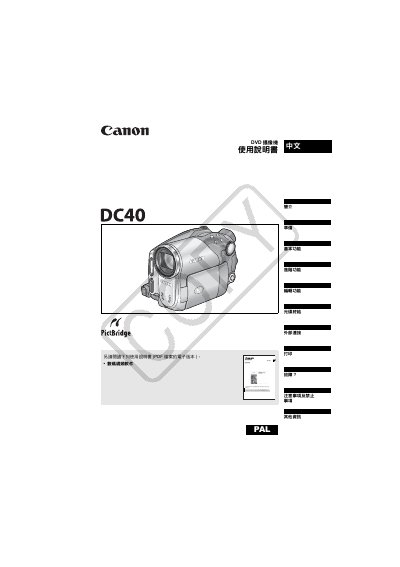
Canon DC40 DVD Camcorder User Manual
This manual covers everything you need to know to get started with the Canon DC40 DVD camcorder, including safety warnings, power‑on procedures, and how to prepare the camera for recording. It explains the different recording modes, disc types, and how to use the built‑in LCD screen and menu system.
Later sections detail advanced functions such as night‑scene mode, zoom, white‑balance, and how to connect the camcorder to a TV or computer for playback and file transfer. The guide also includes a troubleshooting chapter, specifications, and a list of optional accessories. This manual is written in Chinese.
Canon DC40 specifications
| Supported disc types | 8 cm DYD‑R disc, DVD‑RW disc |
|---|---|
| Recording modes | VIDEO mode, VR mode, YR mode |
| LCD screen aspect ratio | 16:9 widescreen or 4:3 |
| Power adapter model | CA‑570 |
Source: Canon DC40 User Manual
All Canon DC40 documents by type
Day-to-day operation, settings and troubleshooting. Start here if the product is already set up.
Questions answered in these manuals
What type of disc should I use with the Canon DC40?
The camcorder works with 8 cm DYD‑R discs or standard DVD‑RW discs.
From: Canon DC40 User Manual
How do I initialize a new DVD‑RW disc?
Before first use, initialize the DVD‑RW disc using the camcorder’s disc‑initialization function.
From: Canon DC40 User Manual
What types of discs can be used with the camcorder?
The camcorder works with 8 cm DYD‑R discs and standard DVD‑RW discs.
Can I record over a disc multiple times?
DYD‑R discs can be recorded only once, while DVD‑RW discs can be recorded repeatedly.
What type of DVD discs does the DC40 use?
The camcorder uses 8 cm DVD‑R (included) or DVD‑RW discs that are commercially available.
How should I initialize a DVD‑RW disc before first use?
Insert the DVD‑RW disc and use the camcorder’s “Initialize Disc” function; this prepares the disc for recording and editing.