
Key facts
Start here
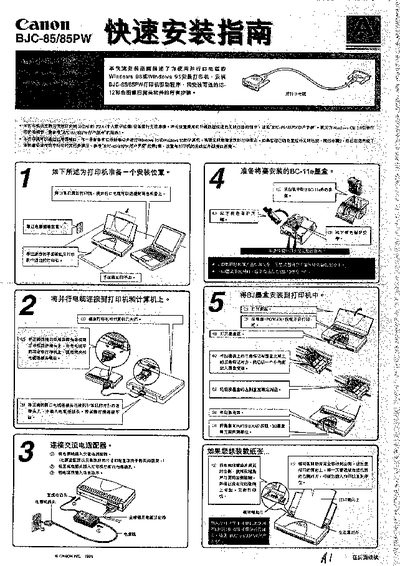
Canon BJC-85/85PW Installation Guide
This guide walks you through preparing a location for the BJC-85/85PW printer, connecting power and USB cables, and installing the printer driver and optional IS‑12 colour scan head software. It includes step‑by‑step instructions for Windows 95/98, with screenshots of the driver installation process.
Additional sections cover troubleshooting USB driver issues, removing unnecessary USB drivers, and safely powering down and disconnecting the printer after installation. This manual is written in Chinese.
All Canon BJC-85PW documents by type
Day-to-day operation, settings and troubleshooting. Start here if the product is already set up.
The shortest path to a working setup, usually only a few pages.
Questions answered in these manuals
How do I install the printer driver on my computer?
Run the driver installer and follow the on‑screen prompts to complete the installation of the printer driver.
How can I remove unnecessary USB drivers after installation?
Open Device Manager, locate the unwanted USB driver entries, select them and click Remove, being careful not to delete required devices.
How do I install or remove the scanner?
Section 6 describes the steps to install and remove the scanner, including mounting and disconnecting the scanner cable.
What are the printer's maximum print dimensions?
The printer can handle a maximum print size of 300 mm × 157.6 mm × 57 mm.