
Key facts
- Brand
- Sharp
- Model
- XE-A107
- Documents
- 2
- Languages
- EN
- Last added
- 2023-10-27
Start here
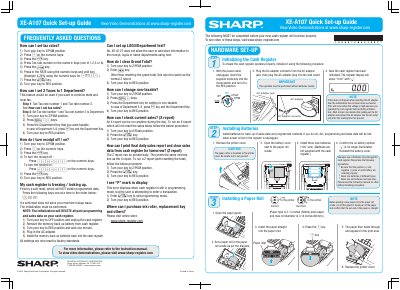
Sharp XE-A107 Cash Register Quick Set-up Guide
This guide explains how to initialize and configure the Sharp XE-A107 cash register, including setting tax rates, departments, receipt options, and printing reports. It covers hardware setup, programming steps, and troubleshooting for common issues like freezing or data loss. The guide also includes instructions for installing batteries and paper rolls, and references the full instruction manual for detailed information.
Read onlineSharp XE-A107 specifications
| Dimensions | 335(W) x 360(D) x 190(H) mm |
|---|---|
| Weight | Approx. 4.0 kg |
| Power consumption (Stand-by) | 1.5 W |
| Power consumption (Operating) | 2.3 W (max.) |
| Working temperatures | 0 to 40 ºC |
| Humidity | 20 % to 90 % |
| Display type | LED 7-segment display (9 positions) |
| Printer type | 1 station print wheel selective type |
| Printing capacity | Max. 13 digits |
| Paper Roll Width | 57.5±0.5 mm |
Source: SHARP XE-A107 Electronic Cash Register Basic User Manual
All Sharp XE-A107 documents by type
The shortest path to a working setup, usually only a few pages.
Day-to-day operation, settings and troubleshooting. Start here if the product is already set up.
Questions answered in these manuals
How can I set tax rates?
Turn key to Z/PGM, press [3], press key, enter tax rate number (1-4), press key, enter rate using numeric keys and void key, press key.
Can I set up LOGO/Department text?
No, XE-A107 does not allow adding store information, logos, or department text.
How do I lock the cash drawer?
Insert the mode key into the drawer lock and turn it 90 degrees counter-clockwise.
From: SHARP XE-A107 Electronic Cash Register Basic User Manual
What does the 'Low battery' symbol indicate?
It appears when the voltage of the installed batteries is under the required level, indicating you need to replace them soon.
From: SHARP XE-A107 Electronic Cash Register Basic User Manual