
Key facts
Start here
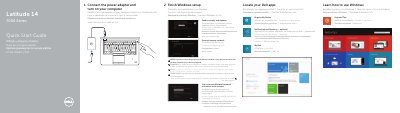
Dell Latitude 14 7000 Series (Latitude 7450/E7450) Computer Quick Start Guide
This quick start guide covers initial setup for the Dell Latitude 14 7000 Series (Latitude 7450/E7450) computer, including connecting the power adapter, finishing Windows setup, locating Dell apps, registering the device, and connecting to a network.
It also identifies the computer's external features and controls, notes optional components such as fingerprint and smart-card readers, and provides product support, contact, and regulatory information.
Dell E7450 specifications
| USB 3.0 connector with PowerShare | Listed |
|---|---|
| Contactless smart-card reader / NFC reader | Optional |
| Fingerprint reader | Optional |
| Smart card reader | Optional |
| Dock connector | Optional |
| Memory card reader | Listed |
Source: Dell Latitude 14 7000 Series (Latitude 7450/E7450) Quick Start Guide
All Dell E7450 documents by type
The shortest path to a working setup, usually only a few pages.
Day-to-day operation, settings and troubleshooting. Start here if the product is already set up.
Disassembly, diagnostics and part numbers, for repair.
Questions answered in these manuals
Where can I find Dell product support and manuals?
The guide lists product support at dell.com/support and manuals at dell.com/support/manuals.
From: Dell Latitude 14 7000 Series (Latitude 7450/E7450) Computer Quick Start Guide
How do I contact Dell?
The guide directs users to dell.com/contactdell.
From: Dell Latitude 14 7000 Series (Latitude 7450/E7450) Computer Quick Start Guide
How do I start setting up the computer?
Connect the power adapter and turn on the computer.
From: Dell Latitude 14 7000 Series (Latitude 7450/E7450) Quick Start Guide
Is the fingerprint reader included on every unit?
No, the fingerprint reader is optional.
From: Dell Latitude 14 7000 Series (Latitude 7450/E7450) Quick Start Guide
What tools are recommended for removing and installing components?
A small flat-blade screwdriver, a Phillips screwdriver, and a small plastic scribe.
How do you dock the Latitude E7450?
Place the docking spacer until it clicks into place in the docking station, then place the computer on the docking spacer.