
Key facts
Start here
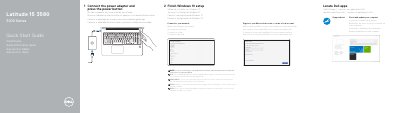
Dell Latitude 15 3580 3000 Series Notebook Quick Start Guide
This Dell Quick Start Guide helps users set up the Latitude 15 3580 3000 Series notebook. It covers locating Dell apps, using SupportAssist, connecting the power adapter, finishing Windows 10 setup, connecting to a network, and signing in to a Microsoft account.
The guide also includes a features diagram showing ports and buttons such as the camera, USB ports, HDMI port, and power button. It lists Dell support websites, contact information, and regulatory details including the computer model Latitude 15-3580.
Dell Latitude 15 3580 specifications
| Input voltage | 100 V AC–240 V AC |
|---|---|
| Input current (max) | 1.6 A / 1.7 A |
| Input frequency | 50 Hz–60 Hz |
| Output voltage | 19.5 V DC |
| Output current | 3.34 A |
Source: Dell Latitude 15 3580 3000 Series Notebook Quick Start Guide
All Dell Latitude 15 3580 documents by type
The shortest path to a working setup, usually only a few pages.
- Dell Latitude 15 3580 3000 Series Notebook Quick Start Guide 2 p
- Dell Latitude 15 3580 3000 Series Notebook Quick Start Guide 2 p
- Dell Latitude 15 3580 3000 Series Quick Start Guide 2 p
- Dell Latitude 15 3580 3000 Series Quick Start Guide 2 p
- Dell Latitude 15 3580 3000 Series Notebook Quick Start Guide 2 p
- Dell Latitude 15 3580 3000 Series Notebook Quick Start Guide 2 p
- Dell Latitude 15 3580 3000 Series Quick Start Guide 2 p
- Dell Latitude 15 3580 3000 Series Quick Start Guide 2 p
- Dell Latitude 15 3580 3000 Series Notebook Quick Start Guide 2 p
- Dell Latitude 15 3580 3000 Series Quick Start Guide 2 p
- Dell Latitude 15 3580 3000 Series Quick Start Guide 2 p
- Dell Latitude 15 3580 3000 Series Quick Start Guide 2 p
- Dell Latitude 15 3580 3000 Series Quick Start Guide 2 p
Questions answered in these manuals
How do I turn on the computer?
Connect the power adapter and press the power button.
From: Dell Latitude 15 3580 3000 Series Notebook Quick Start Guide
What should I enter when connecting to a secured wireless network?
Enter the password for the wireless network access when prompted.
From: Dell Latitude 15 3580 3000 Series Notebook Quick Start Guide
Where can I find product support and manuals?
Product support and manuals are available at Dell.com/support and Dell.com/support/manuals.
From: Dell Latitude 15 3580 3000 Series Notebook Quick Start Guide
What optional features are listed?
Optional features include a SIM-card slot and a fingerprint reader.
From: Dell Latitude 15 3580 3000 Series Notebook Quick Start Guide
How do I connect to a secured wireless network?
Enter the password for the wireless network access when prompted.
Where can I find product support and manuals?
Visit Dell.com/support or Dell.com/support/manuals.